
Software
Microsoft Teams is transforming modern classrooms by making collaboration seamless and engagement interactive. These 10 benefits show how educators can leverage Teams to create dynamic learning experiences that bridge gaps between students, teachers, and parents—anywhere, anytime.
Seamless Classroom Communication Hub

Tired of chasing down missed emails or hunting for the latest class announcement? Microsoft Teams consolidates all classroom communication—assignments, reminders, and discussions—into one searchable, organized hub that students and teachers can access anytime, anywhere.
With pinned announcements and threaded discussions, teachers can highlight key updates while students reply directly in the app. The integrated file-sharing feature lets educators attach worksheets, videos, or presentations without clogging inboxes. Plus, real-time reactions (like thumbs-up or heart emojis) make feedback instant and engaging.
This is the perfect tool for busy educators juggling multiple classes or parents who want to stay looped in without sifting through scattered messages. 💡
Interactive Virtual Classrooms for Hybrid Learning

Hybrid learning doesn’t have to mean hybrid engagement—Microsoft Teams’ virtual classrooms bring in-person and remote students together in one seamless experience. With breakout rooms, live polls, and real-time Q&A, every student—whether in the classroom or logging in from home—feels equally involved.
The platform supports 4K video quality, screen-sharing, and annotation tools to keep lectures interactive, while integrated polls (with instant results) let teachers gauge understanding mid-lesson. For hybrid setups, background filters and virtual hand-raising ensure focus stays on learning, not tech glitches. The digital divide shrinks with features like closed captions and text-based chat for students who need it.
This is ideal for schools balancing in-person and remote learning, or for educators who want to flip classrooms without losing connection. Whether it’s a science lab demo or a literature discussion, Teams keeps everyone on the same page—literally. ✨
Built-In Assignment and Grade Management
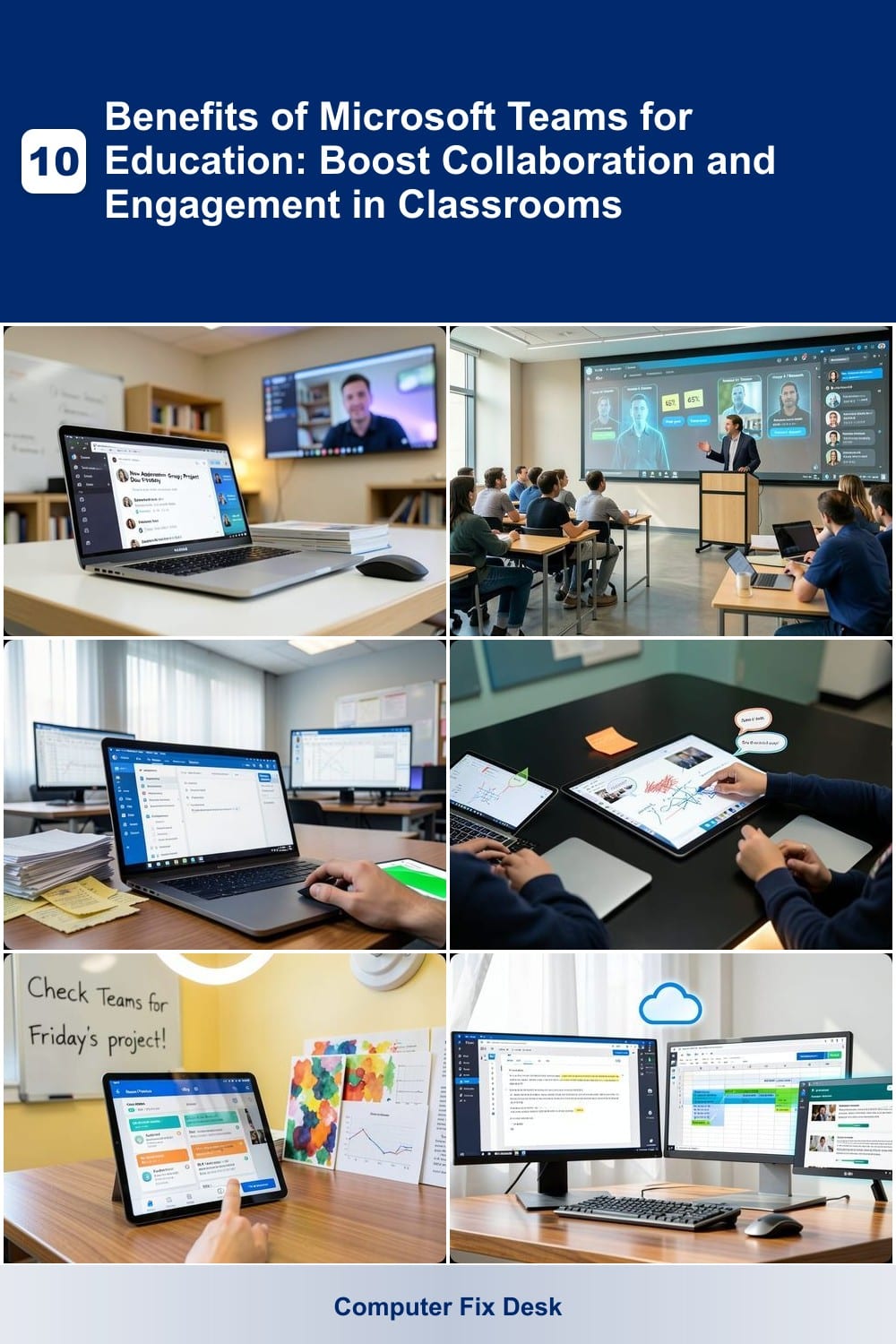
Say goodbye to juggling spreadsheets and email chains—Microsoft Teams’ built-in assignment and grade management tool lets you create, distribute, and grade assignments all in one place. No more lost files or version mismatches; everything stays organized within the platform, with real-time submission tracking and automated reminders.
The integration with OneNote and Office 365 takes it further: embed rubrics directly into assignments, attach Word docs or Excel spreadsheets, and grade submissions without leaving Teams. Teachers can even use rubrics with customizable criteria to standardize feedback, while students get instant notifications when assignments are graded. For large classes, the auto-generated gradebooks sync seamlessly with other Microsoft tools.
This feature is a game-changer for educators drowning in paperwork, especially those teaching hybrid or remote classes. It’s perfect for high school teachers managing 150+ students or college professors grading complex projects—all while keeping parents and admins in the loop. ✨
Collaborative Class Notebooks with OneNote
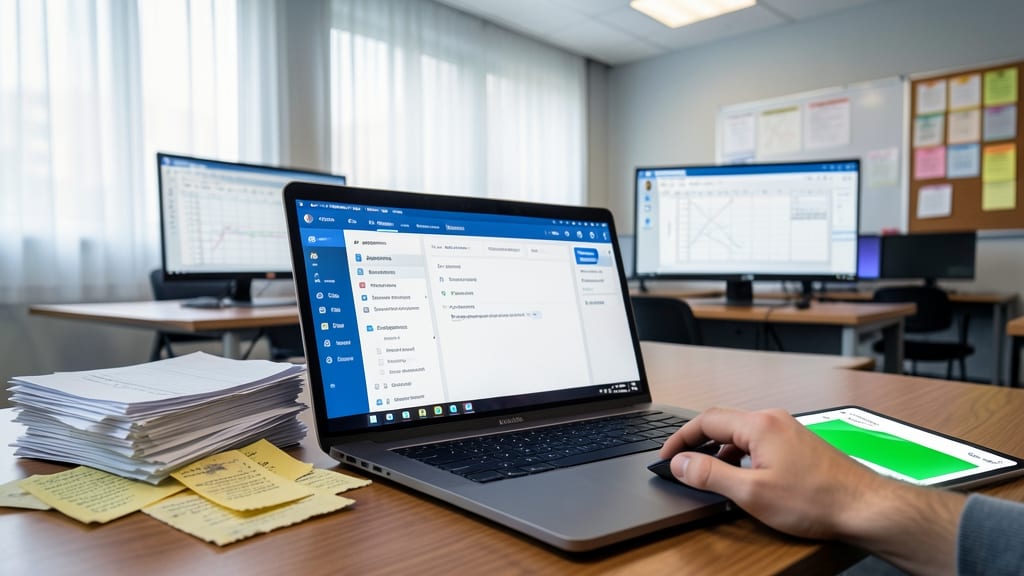
Group projects just got smarter with OneNote’s real-time co-authoring inside Teams. Imagine students brainstorming together, annotating diagrams in the same document, or embedding research videos—all while seeing each other’s contributions instantly. No more emailing drafts or merging conflicting versions.
The integration lets teachers create shared notebooks with handwritten notes, audio clips, and embedded files, all synced across devices. Students can highlight text, draw diagrams, or add voice comments—perfect for STEM projects or literature discussions. Version history ensures no work is lost, while permissions keep assignments organized by class or group.
This is a game-changer for collaborative learning, especially for subjects requiring visual or multimedia input. Whether it’s a science lab report or a creative writing project, OneNote turns messy group work into a structured, engaging experience. ✨
Parent-Teacher Communication Bridge
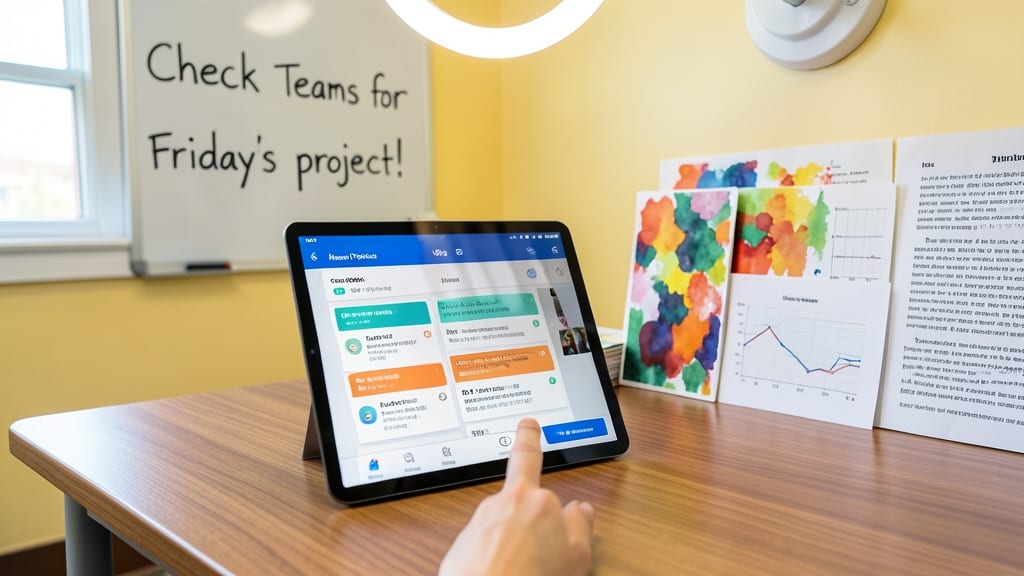
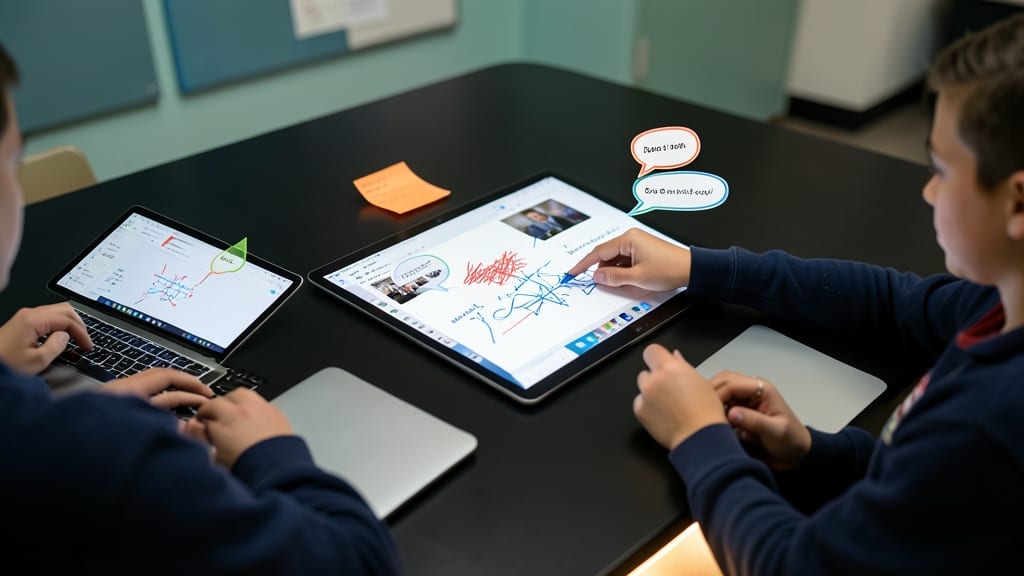
Tired of parents missing emails or scrambling for assignment updates? Microsoft Teams’ Parent-Teacher Communication Bridge solves this with a dedicated, secure portal where guardians access real-time class updates, deadlines, and announcements—all in one place.
Teachers can post automated notifications (like assignment reminders) that sync to parents’ feeds, while role-based permissions ensure only authorized guardians view sensitive content. The mobile-friendly design lets parents check progress during carpool or bedtime, and translation tools break language barriers for multilingual families.
This feature is a game-changer for busy families and substitute teachers who need quick parent communication. No more lost notes or confused emails—just clarity and connection. ✨
Integration with Microsoft Office 365
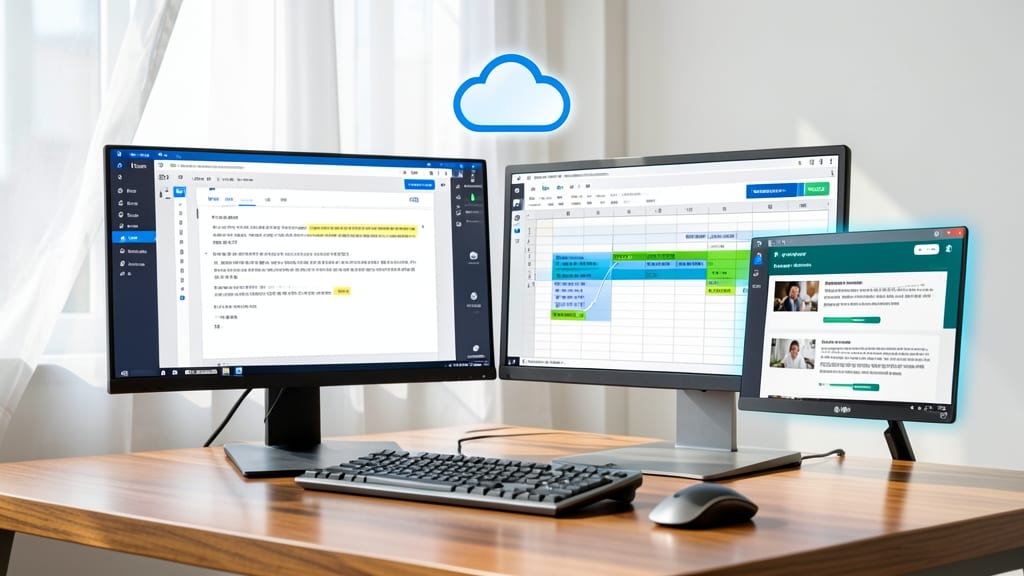
Say goodbye to endless email chains and version chaos—Microsoft Teams’ deep integration with Office 365 turns file sharing into a breeze. Whether it’s a Word document, Excel spreadsheet, or PowerPoint presentation, every file stays synced, version-controlled, and accessible in real time.
Teachers can now embed Forms quizzes directly into assignments, while students collaborate on live documents without compatibility headaches. The @mentions feature ensures everyone’s on the same page, and co-authoring lets multiple students edit a single file simultaneously—no more “finalv2final_final.docx” nightmares.
This is the ultimate solution for classrooms where group projects or research papers require seamless teamwork. No more lost files or outdated versions—just smooth, stress-free collaboration. ✨
Gamification with Classroom Challenges
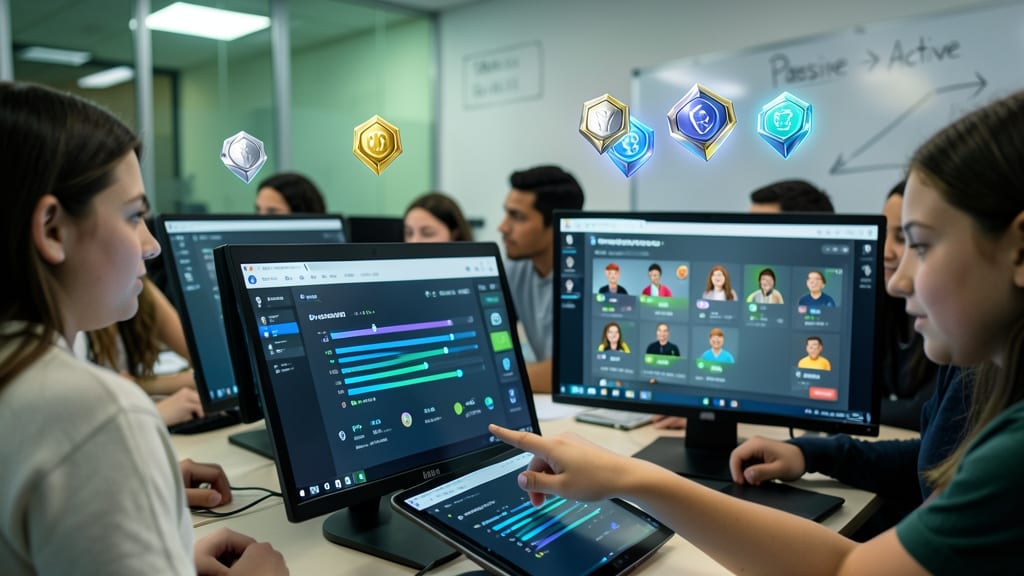
Tired of students staring blankly at worksheets? Microsoft Teams transforms passive assignments into interactive challenges with built-in gamification tools that turn learning into a thrilling competition.
Create customizable leaderboards to track progress, award digital badges for milestones, and organize team-based challenges that align with lesson plans—all without extra apps. The platform’s integrated rewards system lets you design point-based competitions, while progress bars and real-time feedback keep students locked in. For example, a math class could compete to solve equations fastest, while history buffs race to memorize key dates.
Perfect for educators teaching middle or high school students, where motivation often wanes. Even reluctant learners engage when assignments feel like leveling up—and teachers see participation rates climb. ✨
Accessibility Features for All Learners
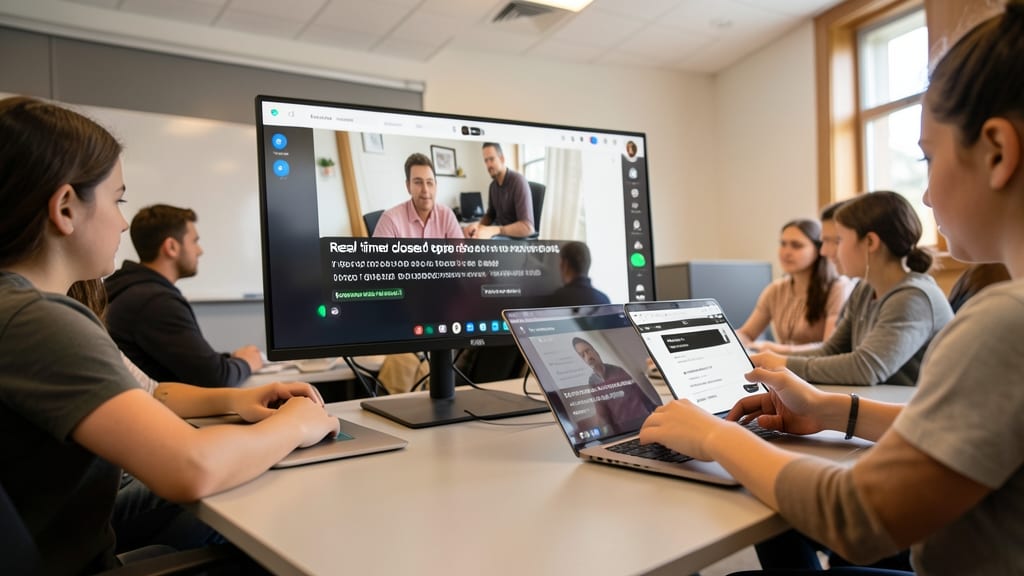
Every student deserves equal access to learning materials—and Microsoft Teams makes it happen without extra tools. Built-in screen readers and closed captions ensure lectures and discussions are fully accessible, while high-contrast modes and adjustable text sizes accommodate visual impairments or reading difficulties.
You can enable these features with just a few clicks, so students with disabilities participate fully in real-time chats, recorded lessons, or shared documents. The platform’s native support removes barriers, letting educators focus on teaching while keeping content inclusive for all learners.
This is especially valuable for schools serving diverse needs, where third-party apps might complicate workflows. Teams delivers accessibility out of the box—no setup hassle, just equitable education. ✨
Secure File Sharing and Storage
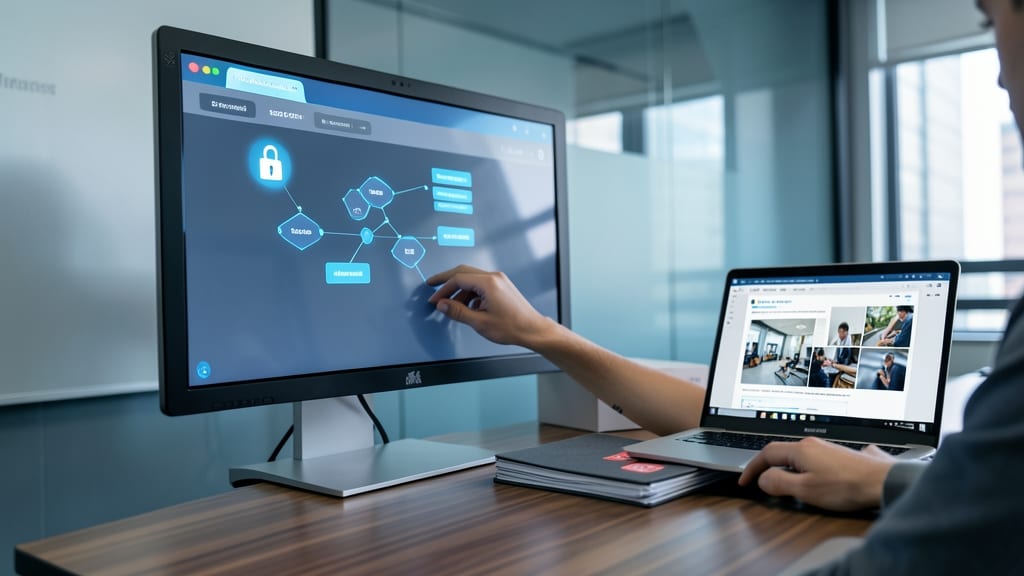
Worried about sharing sensitive student records or large project files? Microsoft Teams’ enterprise-grade encryption and granular permissions ensure only authorized eyes access your data—no more risky email attachments or third-party tools.
With 256-bit encryption for files at rest and in transit, teachers can securely upload documents up to 2GB (or larger via OneDrive integration) while setting expiration dates or view-only access for specific users. The Microsoft Purview compliance tools even help schools meet FERPA and COPPA regulations effortlessly.
This feature is a game-changer for special education teams handling IEP documents or research-based classrooms sharing proprietary materials—keeping everything locked down while staying fully compliant. 🔧
Professional Development for Educators
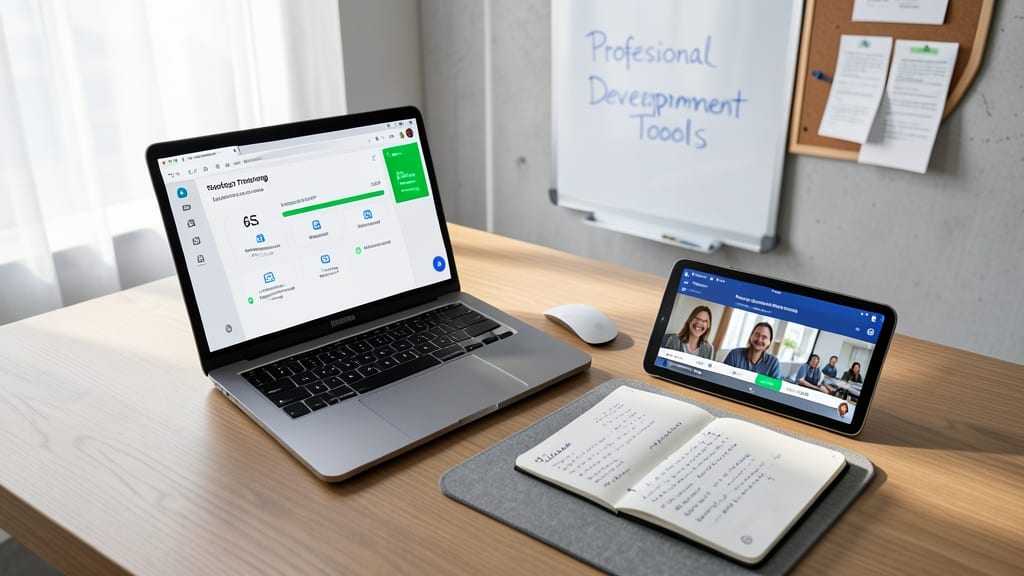
Teachers don’t need to master Teams alone—Microsoft built dedicated professional development tools right into the platform. From step-by-step training modules for beginners to advanced workshops for power users, educators can learn at their own pace without extra costs or external platforms.
The Microsoft Educator Community offers peer-to-peer forums where teachers share lesson plans, troubleshoot challenges, and celebrate wins. Plus, certification paths validate expertise, helping educators stand out while ensuring students benefit from optimized Teams use. 💡
Ideal for new tech adopters or schools rolling out Teams district-wide, these resources turn hesitation into confidence—so educators focus on teaching, not tool setup. ⚡