
Software
Microsoft Edge is more than just a browser—it’s a productivity powerhouse packed with hidden features. These seven pro-level tips will transform your browsing experience, from lightning-fast navigation to seamless integration with your workflow.
Enable Immersive Reader for Focused Reading
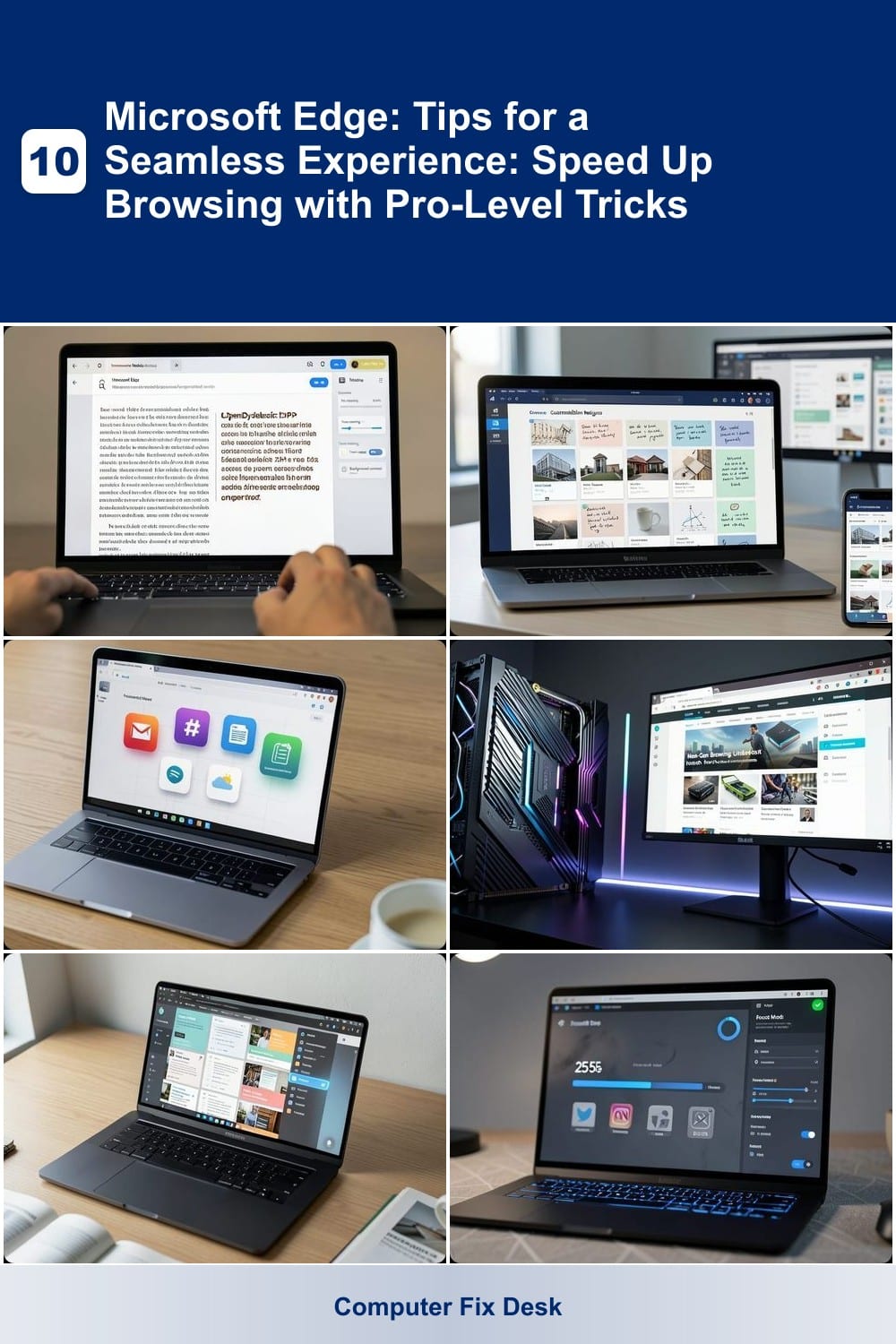
Struggling to focus while reading long articles or research papers? Microsoft Edge’s Immersive Reader transforms dense text into a distraction-free, dyslexia-friendly experience with just a few clicks.
This built-in tool offers customizable fonts, including OpenDyslexic for better readability, along with adjustable line spacing and background colors. You can also highlight text by syllable or part of speech—ideal for language learners or students analyzing complex documents. The feature works seamlessly across devices and syncs with your Microsoft account.
Perfect for students, writers, or professionals tackling research-heavy tasks, Immersive Reader turns overwhelming blocks of text into an accessible, engaging read. Give it a try the next time you’re drowning in a dense article! ✨
Use Collections to Organize Research Instantly
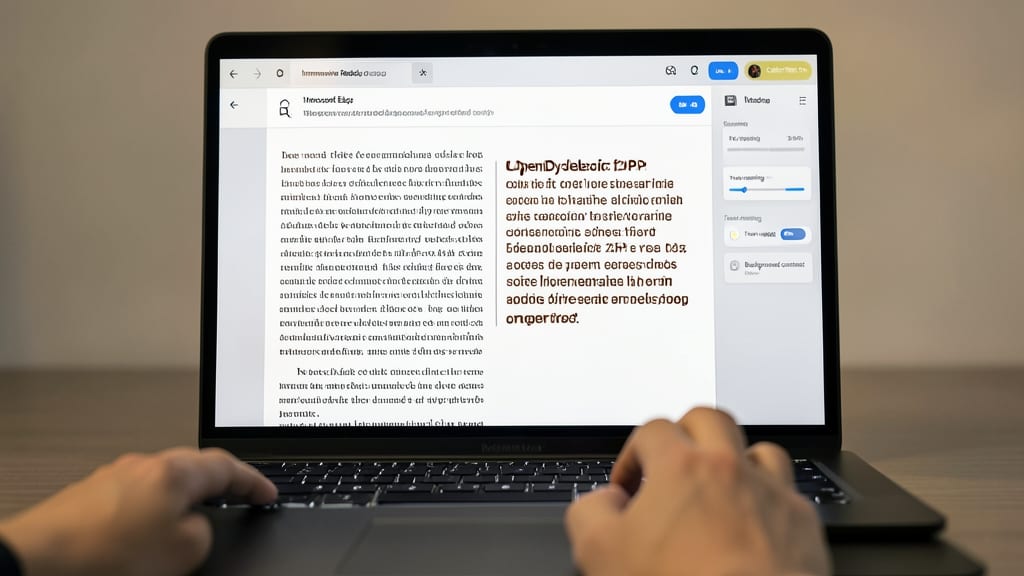
Drowning in tabs while researching? Microsoft Edge’s Collections feature turns chaos into clarity by letting you clip web content, images, and notes into customizable boards—no more lost research or scattered bookmarks.
With cross-device sync, your boards stay updated across Windows, macOS, iOS, and Android. Drag-and-drop text highlights, screenshots, and even handwritten notes into visual boards labeled by project. The AI-powered search within Collections makes finding saved content effortless, while collaboration tools let you share boards with teammates or classmates.
Perfect for students compiling sources, researchers tracking studies, or anyone juggling multiple projects—this is digital organization without the clutter. ✨
Customize Startup Pages with Pinboard
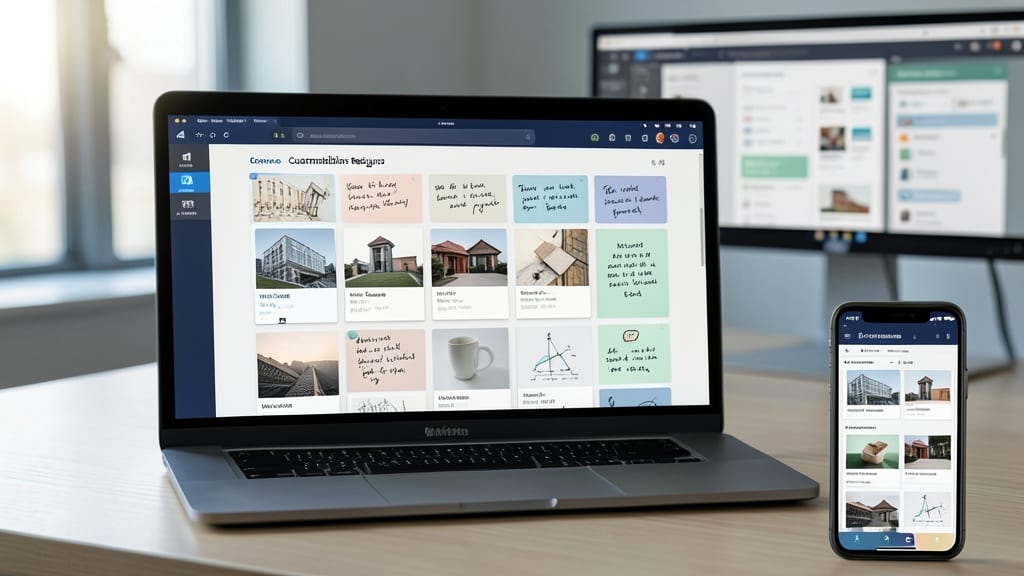
Tired of wasting precious morning minutes searching for your most-used sites? Microsoft Edge’s Pinboard feature turns your new tab page into a personalized launchpad—keeping your workflow front and center without bookmark clutter.
With just a few clicks, you can pin Gmail, Slack, or your favorite news site directly to your startup page, where they’ll load instantly. The feature even lets you customize icon sizes and rearrange them for a clean, distraction-free layout. No more digging through bookmarks—just open Edge and dive straight into your day.
Perfect for professionals who value speed, this trick is especially useful for remote workers or anyone juggling multiple accounts. Try it and reclaim those lost seconds every morning! ⚡
Enable Hardware Acceleration for Faster Performance
Got a high-end GPU but still waiting for pages to load? Microsoft Edge’s hardware acceleration setting is your secret weapon—it offloads rendering tasks to your graphics card, turning sluggish scrolling into buttery-smooth performance. This isn’t just for gamers or designers; even complex sites like Google Maps or interactive dashboards will feel snappier with this toggle enabled.
To activate it, head to Edge Settings > System > Performance and flip the Hardware Acceleration switch to "On." The impact is immediate: smoother animations, faster page transitions, and reduced CPU strain. Just be sure your GPU drivers are up to date—this feature works best with DirectX 11 or later and modern graphics cards like NVIDIA’s RTX or AMD’s Radeon series.
This tweak is ideal for power users juggling resource-heavy tasks, like developers debugging code or designers previewing 3D models. Give it a try—your GPU’s been waiting to help! ⚡
Use Vertical Tabs for Multitasking Efficiency
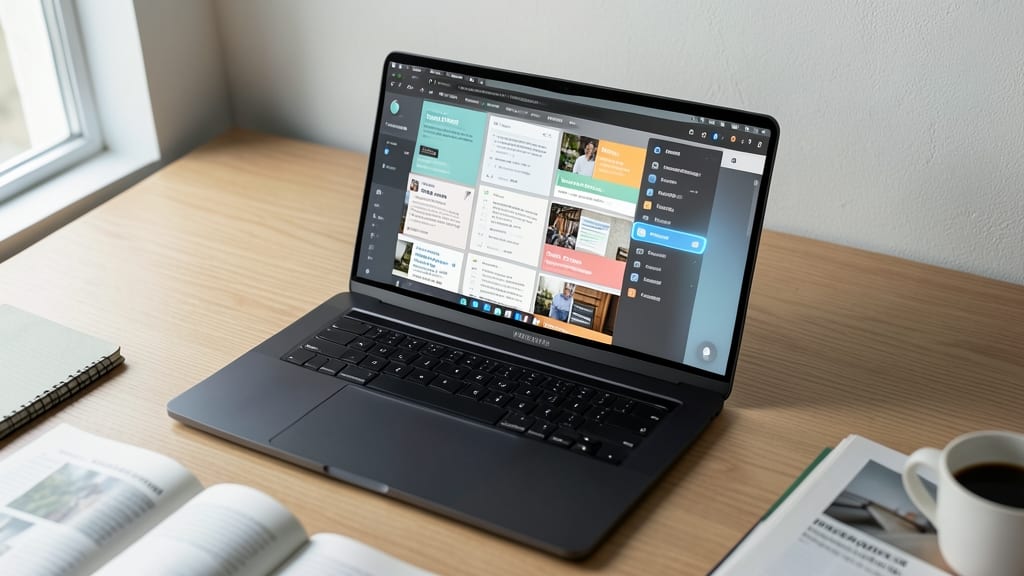
If you’re drowning in a sea of open tabs while working across multiple projects, Microsoft Edge’s vertical tabs feature is your lifeline. This sleek sidebar layout transforms cluttered multitasking into a streamlined, organized experience—no more horizontal tab overload or accidental closes.
Enable it in Edge’s settings under Appearance > Tabs, then toggle "Vertical Tabs" to stack your tabs neatly in a collapsible sidebar. The drag-and-drop functionality lets you rearrange tabs effortlessly, while one-click expansion maximizes screen space when needed. Perfect for developers juggling IDEs, researchers cross-referencing sources, or creatives switching between design tools.
This feature shines for power users who thrive on efficiency—especially those working on dual monitors or laptops with limited real estate. Try it and reclaim your screen from tab chaos! 💻
Block Distractions with Focus Mode
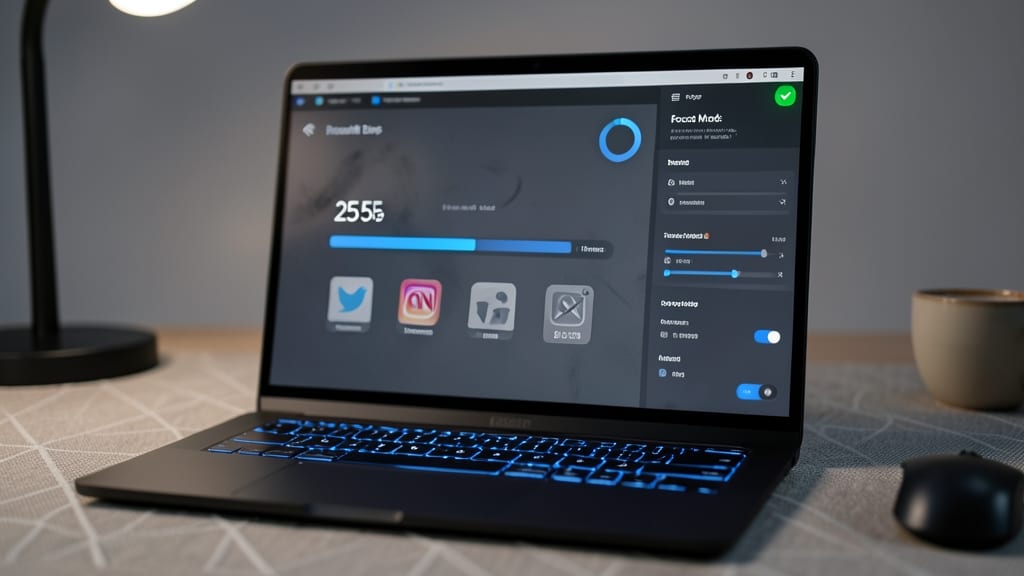
Struggling to focus during those all-important work sprints? Microsoft Edge’s Focus Mode is your secret weapon, using AI to analyze your browsing habits and automatically block distracting sites like social media or news outlets.
Set a custom timer (from 25 minutes to 8 hours) and let Edge do the heavy lifting—it’ll even suggest sites to block based on your usage patterns. The zero-config setup means no extensions or third-party tools required, and it works seamlessly across all your devices. For extra motivation, enable the distraction-free mode to hide all non-work tabs while you’re in focus mode.
Perfect for writers, developers, or anyone tackling deep work, Focus Mode turns your browser into a productivity hub without disrupting your flow. 💪
Sync Passwords Across Devices Securely
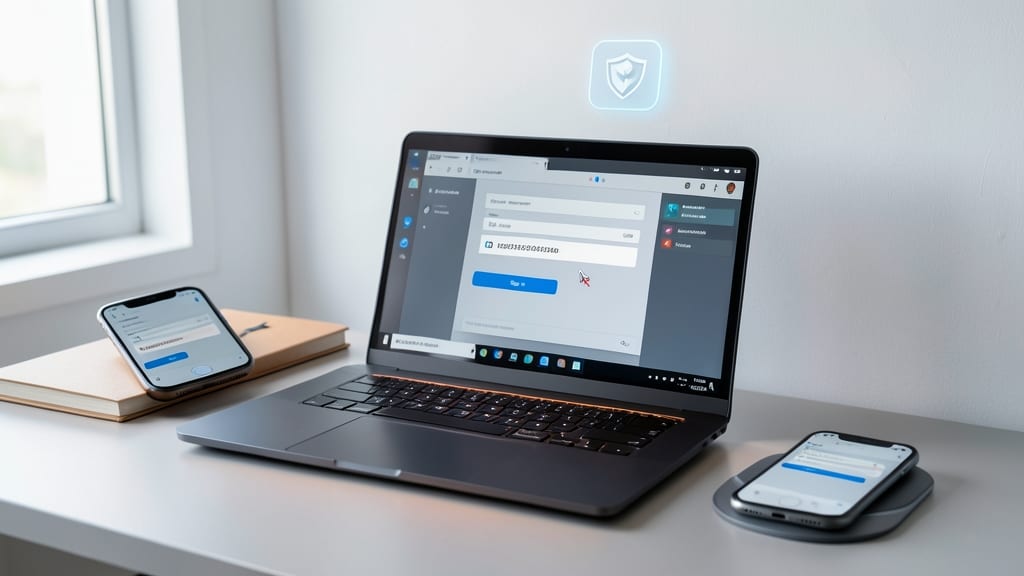
Tired of typing the same passwords over and over—or worse, forgetting them entirely? Microsoft Edge’s built-in password manager eliminates that frustration by securely storing and auto-filling credentials across all your devices.
With cross-platform sync (Windows, Android, and iOS), your logins stay up-to-date in real-time. The manager also generates strong, unique passwords and warns you about weak or reused ones, adding an extra layer of security. Plus, it integrates seamlessly with Edge’s auto-fill feature for forms and logins.
Perfect for busy professionals juggling multiple accounts or anyone who values convenience without compromising security. Never lose another login again! ✨