
Software
Microsoft Teams isn’t just for businesses—it’s a game-changer for teachers looking to streamline communication, boost student engagement, and simplify classroom management. These 10 benefits prove why educators worldwide are adopting Teams to transform their teaching workflows instantly.
Seamless Classroom Communication Hub
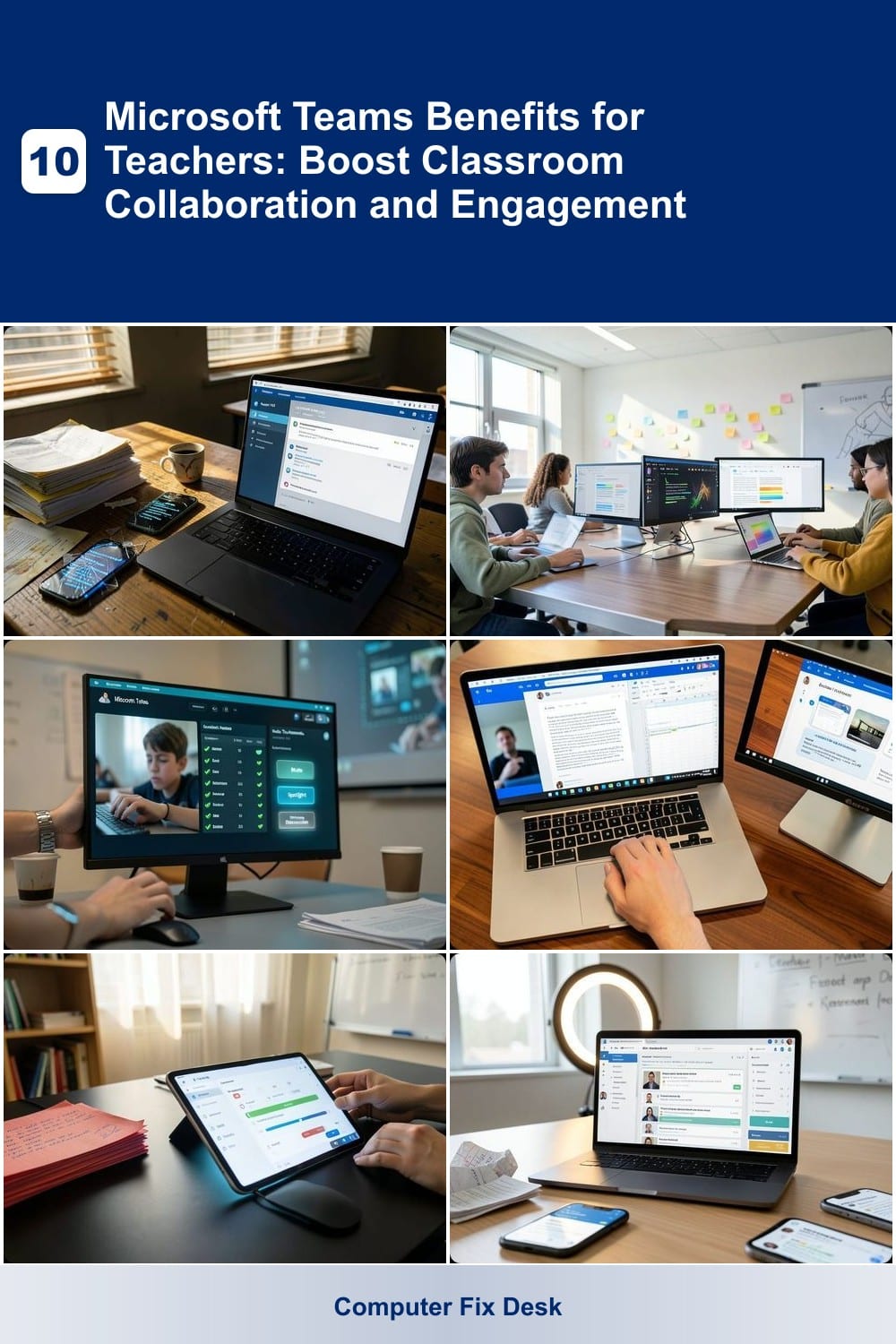
Tired of digging through endless email threads and lost text messages to track classroom updates? Microsoft Teams transforms your communication chaos into a single, organized hub where every announcement, reminder, and discussion lives in one place.
With dedicated channels for classes, subjects, or projects, you can pin important notices at the top while using threaded replies to keep discussions focused. The @mention system ensures students and parents never miss critical updates, and file-sharing integrations let you attach worksheets or feedback directly to conversations. Best of all, read receipts confirm who’s seen your messages—no more wondering if that assignment reminder got lost in someone’s inbox.
This feature is a lifesaver for teachers juggling parent communication, student questions, and administrative tasks—all while cutting down on the back-and-forth that drains your time. ✨
Real-Time Student Collaboration Tools
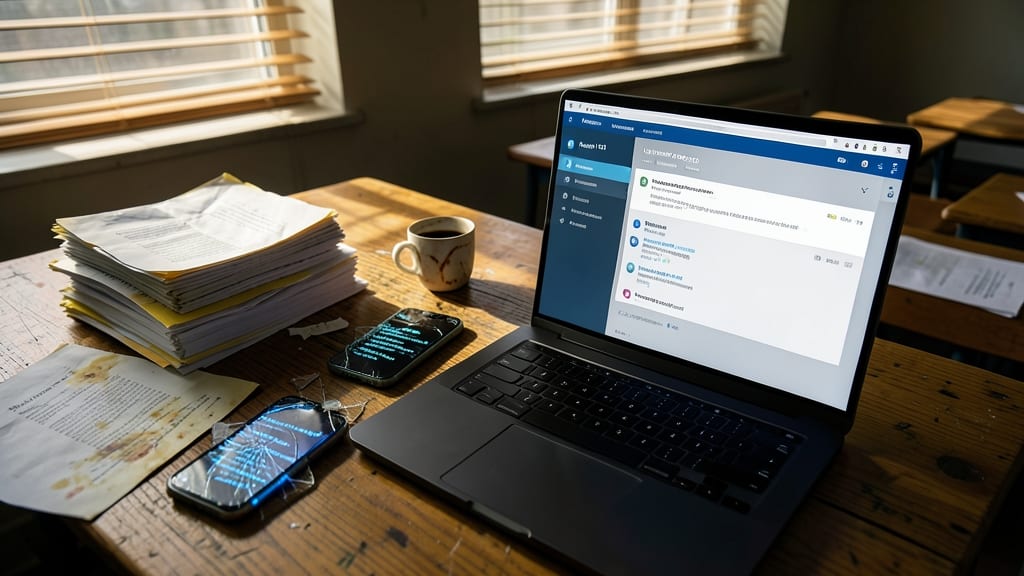
Turn group projects from chaotic email chains into dynamic, real-time brainstorming sessions with Microsoft Teams’ built-in collaboration tools. Whether students are drafting research papers, designing digital art, or solving math problems, the shared document editing feature lets multiple users work simultaneously—just like a virtual whiteboard for the 21st century.
With comment threads and @mentions, teachers can guide discussions without interrupting the flow, while the whiteboard tool (available in Teams meetings) turns brainstorming into an interactive experience. No more lost revisions or "finalversionfinal2.docx" confusion—every change is tracked, and students see updates in real time. Plus, integration with OneDrive ensures all work is automatically saved and accessible across devices.
This is especially powerful for hybrid or remote classes, where physical collaboration isn’t an option. From peer reviews to live coding sessions, Teams turns passive assignments into active learning experiences—all while keeping everyone on the same page. ✨
Built-In Classroom Management Features
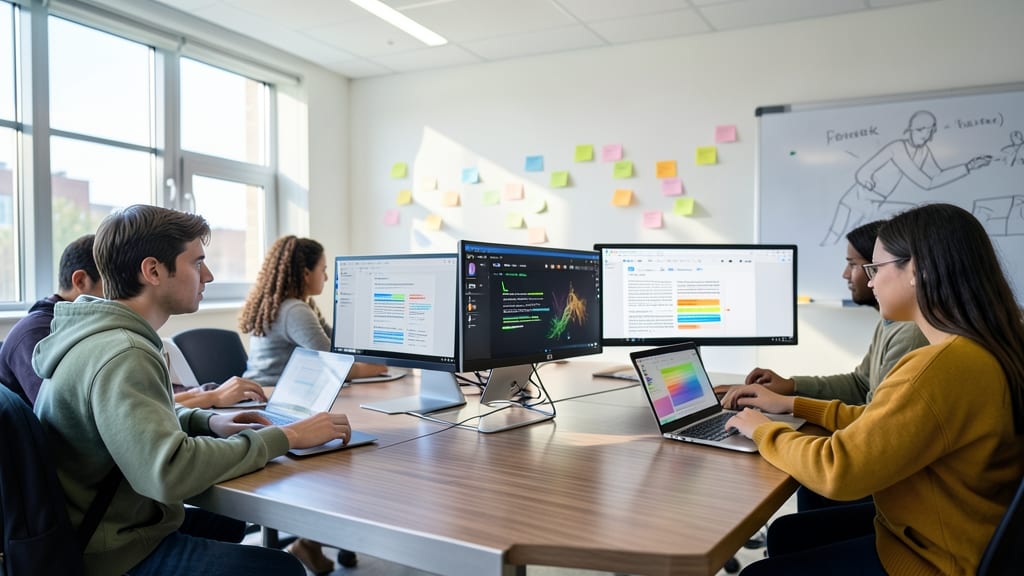
Tired of spending hours managing virtual classrooms while students wander off-task? Microsoft Teams’ built-in classroom management tools give you instant control—mute disruptive students, spotlight presenters, or remove distractions with just a click.
With real-time attendance tracking, you’ll never lose another student to a "forgotten" sign-in sheet. The assignment status dashboard updates automatically, so you can spot missing work at a glance. Even better, the spotlight feature lets you highlight a student’s screen for demonstrations without interrupting the flow of your lesson.
Perfect for hybrid or fully virtual classrooms, these tools turn chaos into order—so you can focus on teaching instead of tech troubleshooting. 💻
Integration with Microsoft Office Suite
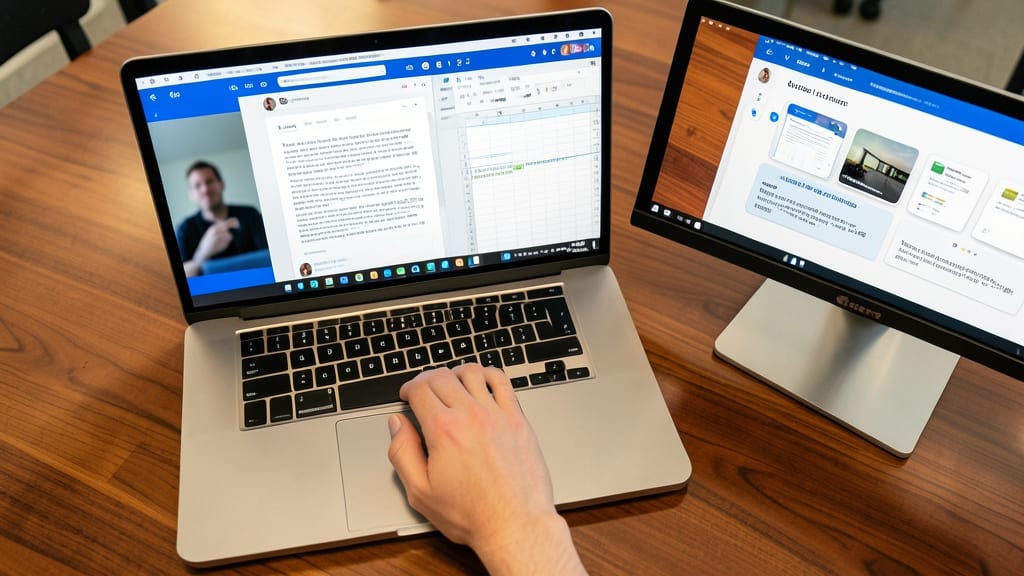
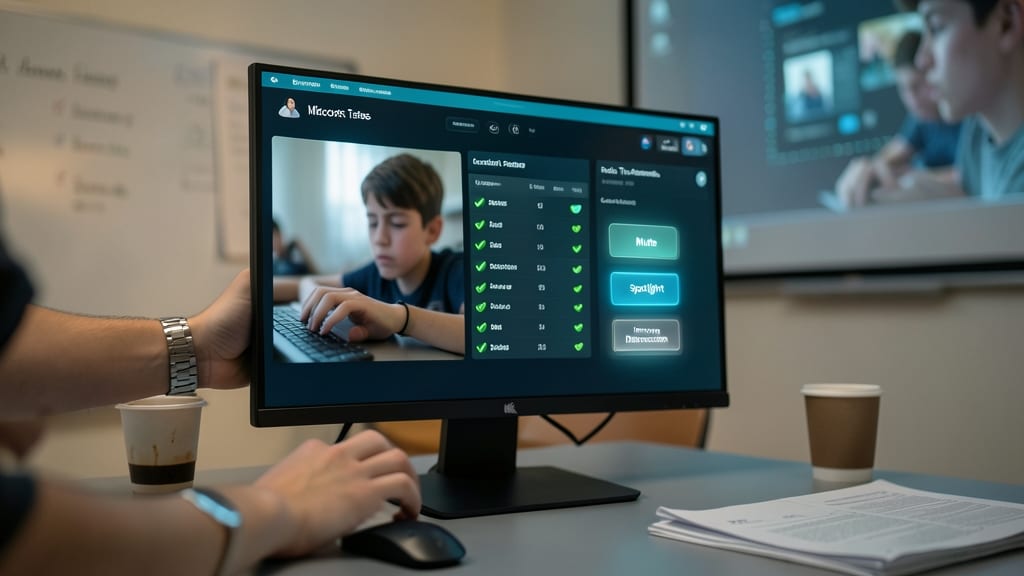
Tired of explaining to students how to open shared files or troubleshoot download errors? Microsoft Teams eliminates that frustration by natively embedding PowerPoint presentations, Word documents, and Excel spreadsheets directly into lessons, quizzes, or feedback sessions.
With just a few clicks, you can upload and present files without leaving the Teams interface—students see the content instantly, whether it’s a live PowerPoint lecture, an interactive Word doc for peer reviews, or an Excel-based math problem set. The integration even supports real-time co-authoring, so students can annotate slides or edit spreadsheets together while you guide them. No more "I can’t open the file" messages or version-control chaos.
This feature is a game-changer for hybrid classrooms, where students might be using Chromebooks, tablets, or desktops—everyone accesses the same materials seamlessly. Perfect for teachers who want to reduce tech headaches and keep lessons flowing smoothly. ✨
Automated Grading and Feedback Tools
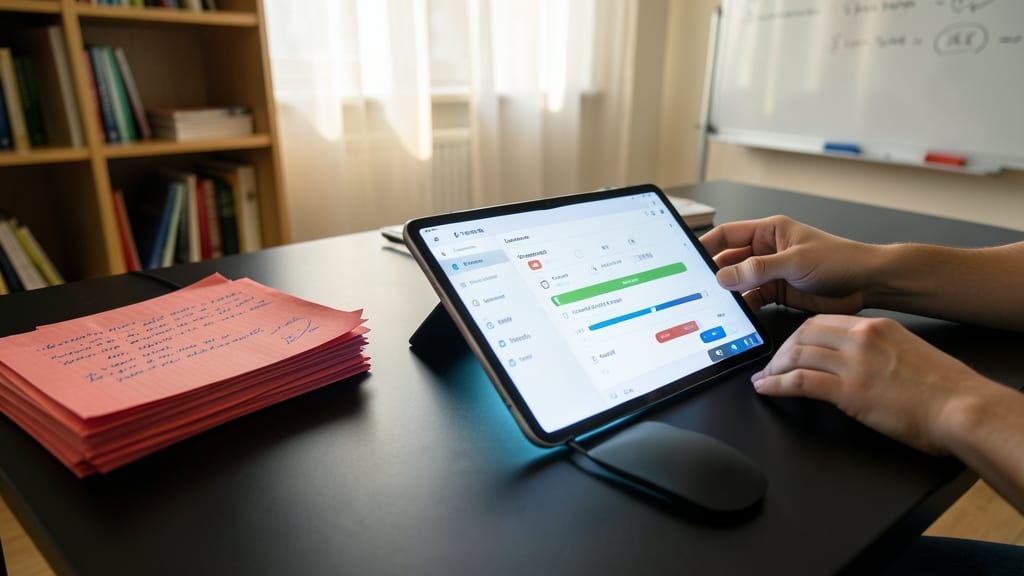
Tired of spending weekends grading papers or quizzes that could be automated? Microsoft Teams’ automated grading tools turn repetitive tasks into a breeze—especially for large classes where subjectivity can skew fairness.
With rubric-based grading templates, you can set clear scoring criteria once and apply them consistently across submissions. For quizzes, the automated quiz scoring feature instantly tallies multiple-choice, true/false, and short-answer responses—no more manual entry. And when personalized feedback is needed, voice-recorded comments let you provide nuanced, human-like insights in seconds, saving time while keeping engagement high.
This is a game-changer for high-enrollment courses or subjects with objective grading, like math or science, where speed and consistency matter most. 💡
Parent-Teacher Connection Platform
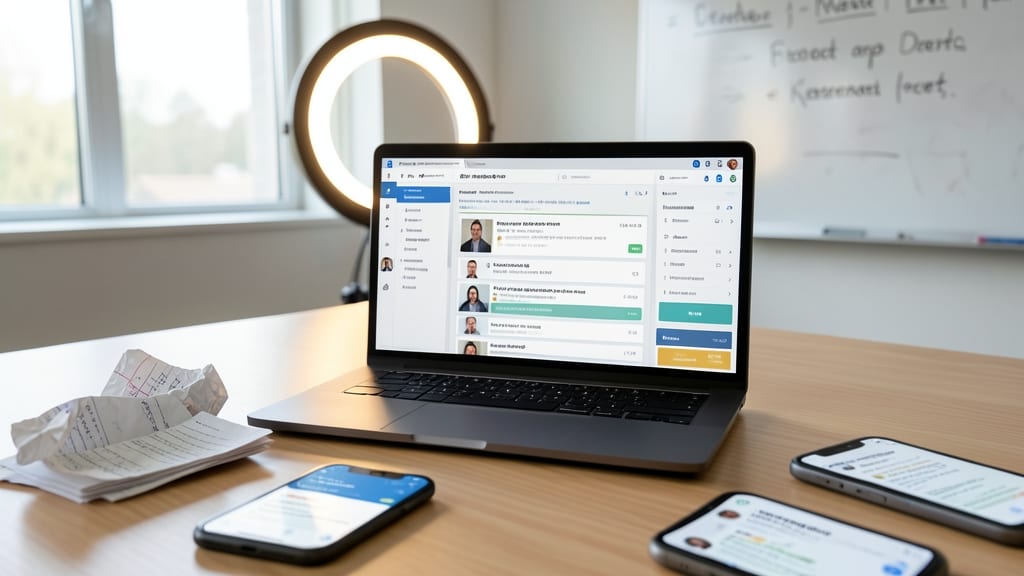
Tired of juggling WhatsApp group messages, unsecured emails, or lost paper notes when sharing student progress with parents? Microsoft Teams offers a dedicated, private space where teachers can post updates, photos, and progress reports—all while keeping student data FERPA-compliant and organized.
With customizable parent groups, teachers can share real-time updates (like project photos or quiz results) without exposing private student info. The secure file-sharing feature ensures parents receive only what’s intended—no more accidentally forwarded emails. Plus, calendar integrations let families track deadlines and events in one place.
This is ideal for elementary teachers managing PTA communications or high school educators sharing college prep resources. No more privacy risks or lost messages—just clear, structured updates everyone can access. ✨
Virtual Classroom Recording Capabilities
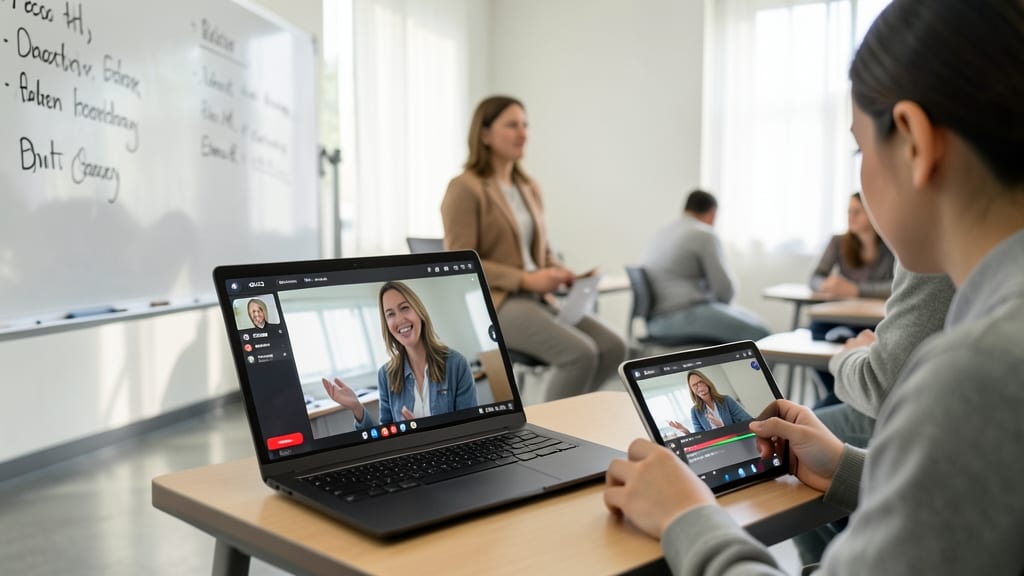
Never miss a teaching moment again with Microsoft Teams’ built-in recording feature, which automatically captures every lesson—no extra equipment needed. Whether you’re teaching hybrid classes or students need to revisit complex topics, recordings ensure no one falls behind, and you can focus on instruction instead of replaying content.
Recordings include high-quality video, audio, and screen share—all stored securely in the cloud—so students can pause, rewind, or fast-forward at their own pace. The feature also integrates with OneNote for easy note-taking during playback, making it perfect for flipped classrooms or absent students catching up.
This tool shines for hybrid educators or those with frequent absences, turning missed classes into opportunities for self-paced learning. ⚡
Customizable Classroom Tabs and Resources
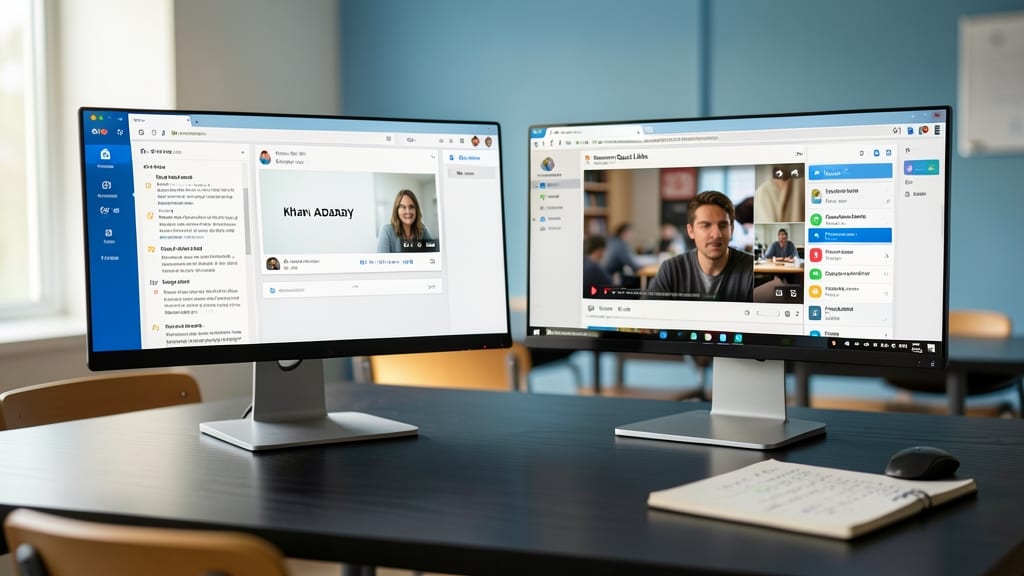
Tired of students scrambling between Google Drive, YouTube, and random quiz links? Microsoft Teams’ customizable classroom tabs turn chaos into a single, organized hub—no more lost assignments or "Where’s the syllabus?" questions.
Pin your syllabus, embed educational videos (like Khan Academy clips), and link directly to tools like Kahoot! or Nearpod—all in one-click tabs. The drag-and-drop interface lets you rearrange resources by unit or topic, while student-friendly icons make navigation intuitive. Plus, updates sync instantly, so everyone sees the latest version of your lesson plan or assignment guidelines.
This feature is a lifesaver for high school teachers juggling multiple subjects or college professors with complex course materials. Say goodbye to "Did you send that link?" emails—your classroom’s resources are now just a tab away. ✨
Breakout Rooms for Small-Group Work
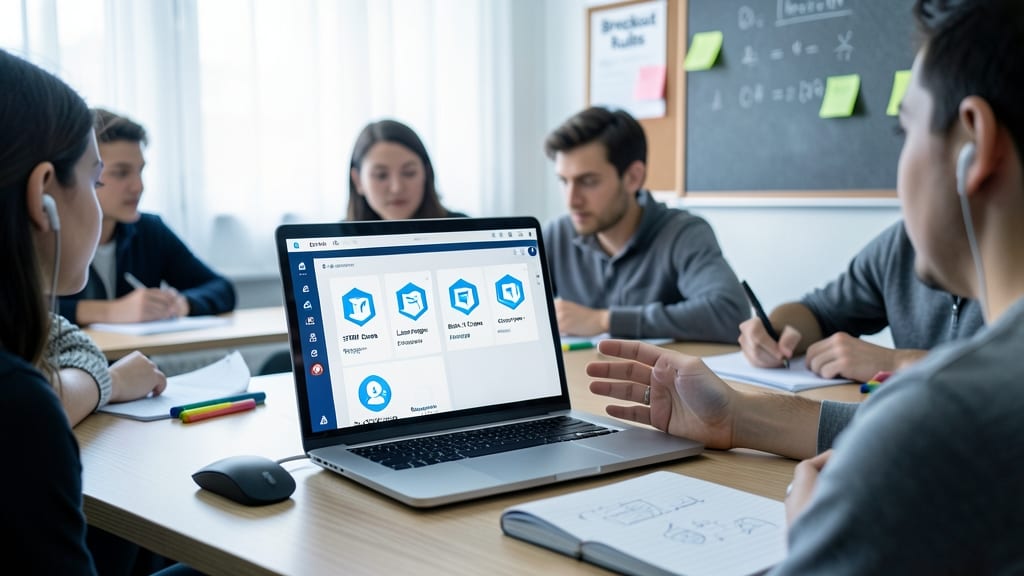
Transforming group work from chaotic to structured just got easier with Teams’ built-in breakout rooms—no extra apps needed. Split your class into focused discussion groups in seconds, whether it’s a STEM debate, language exchange, or book club analysis, all while you monitor progress from the main room.
Create up to 50 rooms with customizable names and time limits, then assign students instantly. The shared whiteboard and document collaboration tools let groups brainstorm visually, while the teacher can rejoin any room to check in. Perfect for hybrid classes where some students join physically while others participate remotely.
Ideal for teachers who want interactive learning without tech overload, these rooms save setup time and keep every student engaged—no matter the subject. ✨
Cross-Platform Accessibility for All Devices
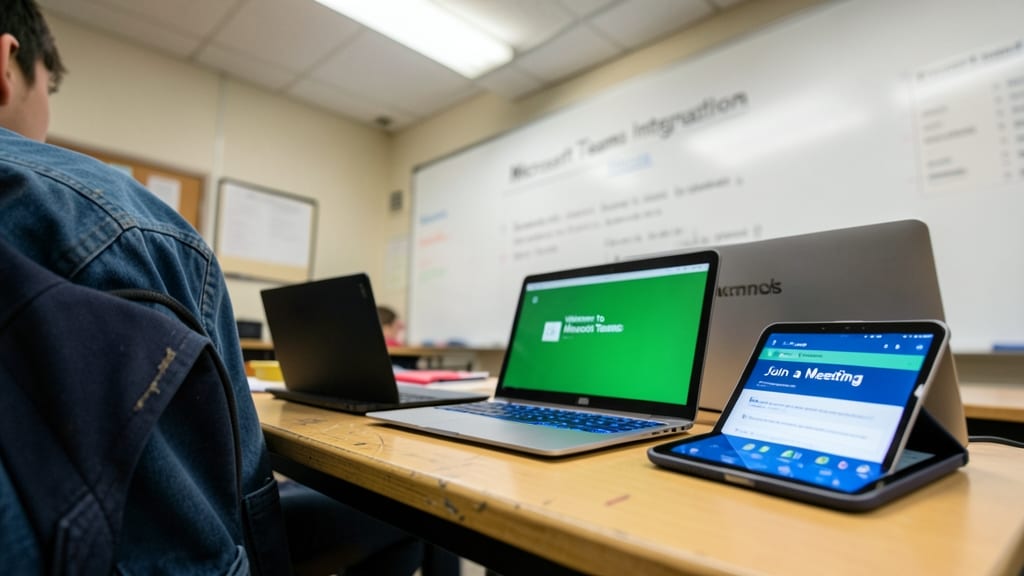
Worried about students struggling with different devices? Microsoft Teams bridges the gap with universal compatibility—whether they’re using a school-issued Chromebook, a home Windows PC, or a parent’s iPad. The platform adapts seamlessly, ensuring no student is excluded due to tech limitations.
The app delivers consistent performance across all major operating systems, including Windows, macOS, iOS, and Android, with optimized layouts for tablets and desktops. Offline mode lets students access recent files even without internet, while low-bandwidth settings reduce buffering during live lessons. Plus, the Teams mobile app syncs effortlessly with desktop versions, so assignments and updates appear instantly.
This makes Teams ideal for 1:1 classrooms, hybrid learning, or districts with mixed device policies—giving every student equal access to lessons, collaboration tools, and resources without extra setup. 🌟