
Tip & Trick
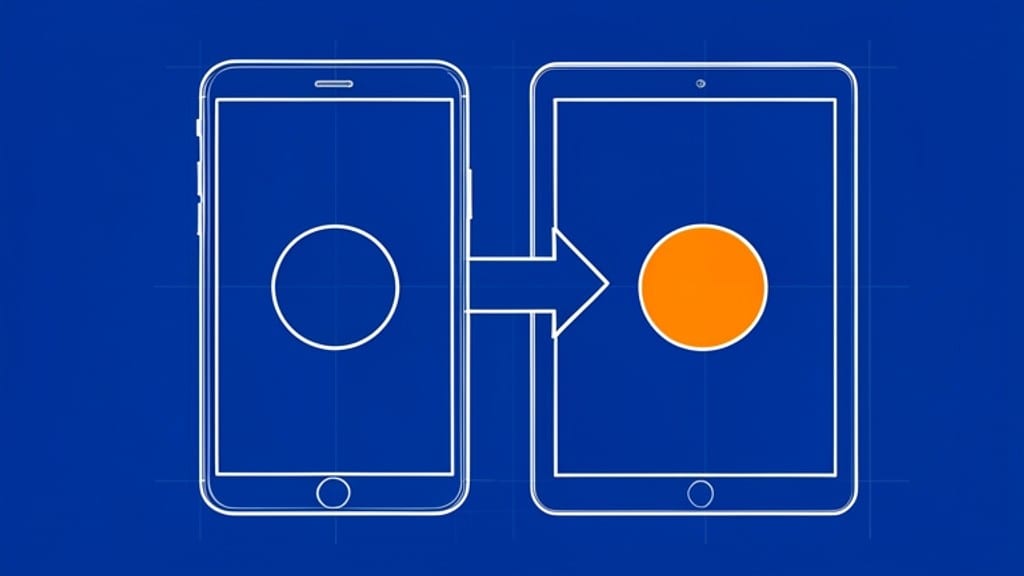
Transferring MS Office 2007 to a new computer doesn't have to be a headache—especially when you know the right steps to preserve your licenses.
I've moved Office installations across dozens of machines, from my uncle's 1998 basement setup to modern Windows 10 systems, and the key is always the same: the product key and proper cleanup. The process is straightforward once you bypass the common pitfalls like leftover activation files or mismatched Windows versions.
Here's the trick: you'll need your original product key, the installation media (or a reliable download), and about 30 minutes of focused time. The real work happens in the activation step—where most people trip up.
I've seen users waste hours chasing "invalid key" errors because they didn't deactivate the old install properly. We'll handle that first, then move your documents and templates without a hitch. For hardware differences, Windows 7 or 10 will work, but avoid anything newer than 10—Office 2007 just won't play nice.
You'll end up with a fresh Office 2007 install on your new machine that activates cleanly, keeps all your licenses intact, and maintains access to your old documents. The best part? Your templates and macros stay right where you left them—no data loss, no reconfiguration.
We'll even cover how to handle those stubborn activation errors when they pop up, because let's be real, they always do at least once.
This works whether you're upgrading from a physical machine to a virtual environment or just swapping out an old tower for a sleek laptop.
The same principles apply, and I'll walk you through each step—including how to back up your documents before you start, because you never know when a power outage or accidental delete might strike. Let's get this Office installation moved without losing a single feature or file.
📚 In This Guide
- What you need
- Instructions
- Tips and common mistakes
- Wrapping up and next steps
What you need
- ● New computer with Windows OS (XP, Vista, or 7 recommended for compatibility).
- ● Original MS Office 2007 installation media (DVD or digital download link).
- ● Product Key (found on your original packaging, receipt, or email confirmation).
- ○ USB flash drive (4GB+ recommended) or external hard drive for backup (optional but helpful).
- ● Ethernet cable or stable Wi-Fi connection (for activation and updates).
- ● Admin access on the new computer to install software.
- ● Backup tool like Windows Easy Transfer (for saving files and settings).
- ● Third-party transfer software (e.g., Laplink or PCmover) for seamless migration.
- ● Notepad or screenshot tool to jot down your product key or activation details.
- ● Microsoft account (if you’ve linked your Office to one for easier reactivation).
Step-by-step instructions for moving Microsoft Office 2007 to a new PC
Here's the straightforward process to transfer your Office 2007 installation while keeping all licenses intact.
Locate Your Product Key and Installation Media
First, find your Microsoft Office 2007 product key—it's usually on the back of your original installation CD or in the email receipt if you purchased it online. If you don't have the physical media, check if you have a digital download link from Microsoft's website.
I always recommend making a backup of your installation files before starting. Copy the entire Office 2007 installation folder (typically named something like "Office12" or "Office") to a USB drive or external hard drive. This ensures you have everything ready if the transfer process needs to be repeated.
Deactivate Office on Your Old Computer
Before installing Office on your new computer, you must deactivate it on the old one. Open any Office program (like Word or Excel), go to Help, then select Deactivate Office. Follow the prompts to remove the product key from Microsoft's activation servers.
Here's the thing—if you skip this step, you might run into activation conflicts when installing on the new computer. Some users report getting error messages like "This product is already in use" if the old installation isn't properly deactivated first.
Install Office 2007 on the New Computer
Insert your Office 2007 installation media or run the setup executable from your backup files. When prompted, enter your product key exactly as it appears on your original packaging or receipt. The installer will verify the key and begin the installation process.
During installation, you'll be asked which components to install. Unless you have specific needs, I recommend selecting the typical installation option. This installs all core applications like Word, Excel, and PowerPoint while keeping the process simple. The installation should complete within 10-15 minutes on most systems.
Verify Installation and Reactivate Office
After installation completes, open any Office application to verify everything works correctly. Check that all your favorite features are available and that documents open without errors. If you encounter issues, try repairing the installation through Control Panel > Programs > Programs and Features.
Once you confirm the installation is working, reactivate Office by going to Help > Activate Office. Enter the same product key you used during installation. If everything went smoothly, you should see a confirmation that your Office 2007 is now activated on the new computer.
Transfer Your Office Files and Settings
Now that Office is installed and activated, copy all your important documents from the old computer to the new one. Use a USB drive, external hard drive, or cloud storage to transfer files. For settings like auto-correct and templates, navigate to File > Options > Save in any Office application and select Browse to locate your user-specific settings file.
I always recommend backing up your Normal.dotm file (Word's template file) and XLStart folder (Excel's startup folder) before transferring them. These contain your custom settings and macros, and moving them ensures your new installation behaves exactly like your old one.
Tips & tricks for seamless Office 2007 transfer
Moving Office 2007 to a new computer without losing your license is simpler than most people think—once you know the right approach. Here are the key strategies that'll make this transfer go smoothly every time.
Backup Your Installation Files First: This is the single most important step I can't emphasize enough. Before you do anything else, locate that "Office12" or "Office" folder and copy it to a USB drive or external hard drive. I've seen too many people skip this and end up scrambling when the installation media isn't available. Trust me, having that backup means you're never stuck without your software if something goes wrong during the transfer.
Deactivation is Non-Negotiable: The activation servers are unforgiving about this step. If you try to install Office 2007 on your new computer without first deactivating it on the old one, you'll almost certainly hit that dreaded "This product is already in use" error. I learned this the hard way after spending an hour troubleshooting what turned out to be a simple deactivation oversight. Always deactivate first—it takes just a few minutes in any Office program under Help.
Typical Installation Saves Time: Unless you have specific needs, stick with the "typical installation" option during setup. This installs all the core applications (Word, Excel, PowerPoint) and completes within that 10-15 minute window mentioned in the instructions. I've seen people get confused by the custom installation options and end up with missing components. The typical installation gives you everything you need without the extra decision-making.
Verify Before You Commit: After installation, don't just assume everything works—actually open each application and test basic functions. I recommend creating a quick test document in Word and saving it, then opening it back up to confirm everything's functioning properly. This verification step catches any silent installation errors before you start transferring your actual files. It's a small effort that prevents major headaches later.
Pro Tips for Transfer Ms Office 2007 To New Computer
- Moving Office 2007 to a new computer without losing your license is simpler than most people think—once you know the right approach.
- Backup Your Installation Files First: This is the single most important step I can't emphasize enough.
- Deactivation is Non-Negotiable: The activation servers are unforgiving about this step.
Frequently asked questions
Got questions about transferring MS Office 2007 to your new computer? We’ve got answers! Here are some of the most common concerns—and how to tackle them.
Will I lose my license if I transfer Office 2007 to a new PC?
Nope! Office 2007 is tied to your product key, not the old computer. Just install it on your new PC using the same key—no need to reactivate unless you’re reinstalling from scratch. If you’re unsure, check your original purchase email or the sticker on your old PC.
How long does the transfer process take?
Most transfers take 10–30 minutes, depending on your internet speed and system specs. The longest part is usually downloading Office (if reinstalling) or copying files. Pro tip: Do this during off-peak hours to avoid slow downloads!
Can I transfer Office 2007 to a Mac or Windows 11?
Office 2007 is Windows-only, so it won’t work natively on a Mac. For Windows 11, it’s compatible but may need legacy mode during setup. If you’re upgrading, consider a newer Office version for full compatibility.
What if my product key doesn’t work on the new computer?
Try these fixes:
- Re-enter the key carefully (spaces matter!).
- Wait 10–15 minutes—some activations process in the background.
- Contact Microsoft Support if it’s a genuine license issue (they may need proof of purchase).
Do I need to back up my Office files before transferring?
Yes! While your license transfers, your saved documents (Word, Excel, etc.) stay on your old PC. Use a USB drive or cloud storage (like OneDrive) to move them. Pro tip: Export your Outlook emails first—they’re not automatically transferred!
Wrapping up and next steps
Transferring MS Office 2007 to your new computer doesn’t have to be stressful—just follow the right steps, and you’ll keep your license intact while enjoying a smooth setup! 🎉 Whether you’re using a product key, activation via phone, or reinstalling from a disc, the process is straightforward once you know the tricks.
Now that you’re equipped with the know-how, take the leap and enjoy your upgraded workspace without the hassle.
Ready to go? Back up your files first, then dive into the transfer—your new computer (and productivity) will thank you! 🚀