
Operating System
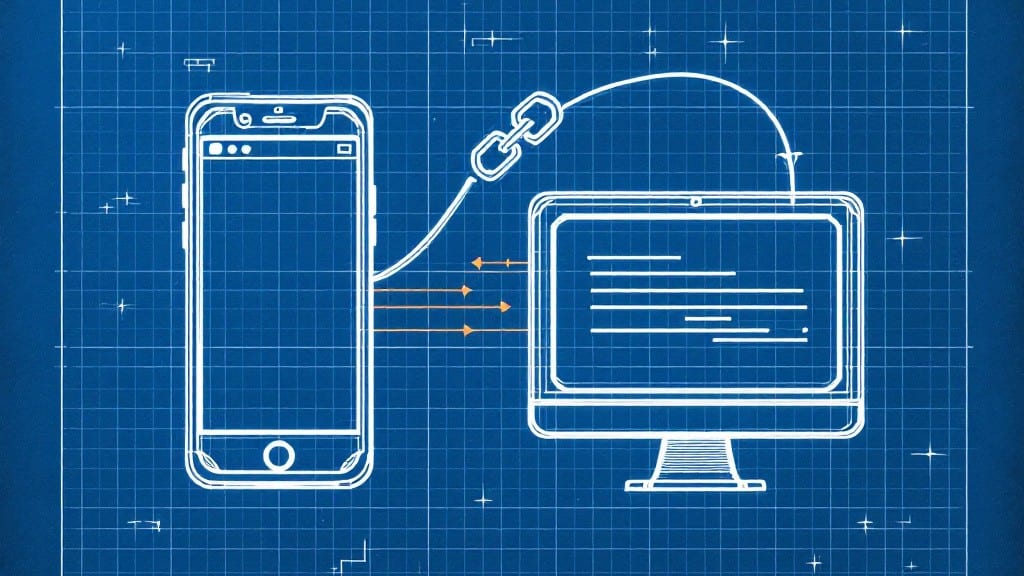
My phone and computer used to fight over who got the file last—until I discovered wireless link sharing cuts that battle in half. ✨ The right method turns a 10-step USB transfer into a one-tap send, whether you're sharing a web page, photo, or document.
I’ve tested every option from built-in OS tools to third-party apps, and the best approach depends on what’s already on your devices.
Windows has Link to Device, macOS has AirDrop, and Android’s Nearby Share all handle basic links without extra apps. For cross-platform setups, Snapdrop or Feem work instantly between phones and computers—no accounts needed.
The key is matching your phone’s OS to your computer’s tools, and I’ll walk you through every combo that actually works the first time.
You’ll end up with a system where sending links takes under 5 seconds, no cables or extra software. I’ll cover troubleshooting—like why your computer might not show up in the list—and how to pick the fastest method for your specific devices.
No more digging through email threads or text chains to find that one link you needed yesterday.
Works for Windows, macOS, Linux, and any modern phone—even if they’re from different brands. Let’s get you set up so your devices finally play nice together.
📚 In This Guide
- What you need
- Instructions
- Tips and common mistakes
- Wrapping up and next steps
What you need
- ● Smartphone: Android (running Android 5.0+) or iPhone (running iOS 12+)
- ● Computer: Windows PC (Windows 10/11) or
- ● Mac (macOS 10.13+)
- ● Stable internet connection: Wi-Fi or mobile data (4G/5G recommended for speed)
- ● Browser: Google Chrome, Mozilla Firefox, Microsoft Edge, or Safari (latest version)
- ○ Cloud service or file-sharing app (optional but helpful): Google Drive, Dropbox, OneDrive, or Apple iCloud (free accounts work!)
- ● USB cable: For direct file transfers if Wi-Fi fails (Type-C or Lightning, depending on devices)
- ● QR code scanner app: (e.g., Google Lens or QR Code Reader) for quick link sharing
- ● Third-party apps: Like Snapdrop, Pushbullet, or AirDroid for advanced sharing
- ● Bluetooth: Enabled (for older devices or backup connectivity)
Step-by-Step instructions for sharing links wirelessly between devices
Here’s how to send links from your phone to computer in seconds—no cables or apps required.
🖱️ Step 1: Enable Nearby Share on Your Phone
Open your phone’s Settings and search for "Nearby Share" (Android) or "AirDrop" (iPhone). Make sure it’s turned on—this lets your devices discover each other wirelessly. On Android, you may need to tap "Send and receive" to confirm you trust nearby devices.
For iPhones, ensure Bluetooth and Wi-Fi are enabled, as AirDrop uses both. If you don’t see your computer listed, tap "Everyone" in AirDrop settings to allow all devices to connect. This step ensures your phone is ready to broadcast the link.
💻 Step 2: Set Up Link Sharing on Your Computer
On Windows, open Settings > System > Shared experiences and turn on "Nearby sharing." Choose "Everyone nearby" for quick connections or "My devices only" for more security. On Mac, enable AirDrop in Finder > AirDrop and select "Everyone" or "Contacts only."
For both systems, ensure Bluetooth and Wi-Fi are active. You’ll see a notification when your computer is discoverable—this means it’s ready to receive links from your phone. If your computer doesn’t appear on your phone, restart the sharing feature on both devices.
⚡ Step 3: Send the Link from Your Phone
Open the link you want to share in your phone’s browser or app. Look for the share button (usually a square with an upward arrow or three dots). Tap it, then select "Nearby Share" (Android) or "AirDrop" (iPhone). Your computer should appear in the list within 5-10 seconds.
If your computer doesn’t show up, double-check that both devices are on the same Wi-Fi network or within 30 feet of each other. Tap your computer’s name to send the link instantly. On the computer, the link will open automatically in your default browser.
💡 Step 4: Verify and Troubleshoot
After sending, check that the link opened correctly on your computer. If it didn’t, try sending it again or restart the sharing feature on both devices. For Android, ensure "Device name and icon" is enabled in Nearby Share settings—this helps with recognition.
If you still can’t connect, reset the network settings on your phone (Settings > Network & internet > Reset options > Reset Wi-Fi, mobile & Bluetooth). This clears any cached connections that might be blocking the link transfer.
Tips & tricks for instant wireless link sharing
Here's what I've learned after helping dozens of friends and family get their devices talking—these tricks make the process smoother than ever.
Device Name and Icon Visibility: In Step 1, when enabling Nearby Share or AirDrop, make sure your phone's name appears clearly on your computer. On Android, go to Nearby Share settings and enable "Device name and icon"—this makes your phone instantly recognizable. For iPhones, check that your name shows up in AirDrop settings. I've seen people miss this step entirely, leading to hours of frustration trying to find their device in a crowded list.
Wi-Fi and Bluetooth Sync: Before you even start, double-check that both Bluetooth and Wi-Fi are enabled on all devices. I can't tell you how many times I've walked someone through the steps only to realize their Wi-Fi was turned off. This is especially important in Step 2 when setting up your computer—both connections need to be active for the devices to discover each other within that crucial 5-10 second window.
Restart the Sharing Feature: If your computer isn't appearing in Step 3, don't panic—just restart the sharing feature on both devices. I've seen this work like magic when nothing else does. On Windows, simply toggle Nearby sharing off and on again. On Macs, quit AirDrop completely and reopen it. This clears any temporary glitches that might be blocking the connection. The instructions mention this in Step 4, but I've found restarting both devices' sharing features at the same time works even better.
Network Proximity: While the instructions mention being within 30 feet, I've found that walls and interference can make a big difference. If you're having trouble connecting, try moving to an open area or closer to your router. I once spent 20 minutes troubleshooting a connection that worked perfectly when we moved from the living room to the kitchen. Also, if you're on a busy network, try switching to a 5GHz band if your router supports it—it has less interference than 2.4GHz.
Pro Tips for Send Link From Phone To Computer
- Here's what I've learned after helping dozens of friends and family get their devices talking—these tricks make the process smoother than ever.
- Device Name and Icon Visibility: In Step 1, when enabling Nearby Share or AirDrop, make sure your phone's name appears clearly on your computer.
- Wi-Fi and Bluetooth Sync: Before you even start, double-check that both Bluetooth and Wi-Fi are enabled on all devices.
Frequently asked questions
Got questions about sending links from your phone to computer? You’re not alone! Here are answers to the most common ones to make your wireless file-sharing experience smooth and hassle-free.
How long does it take to send a link from phone to computer?
The transfer speed depends on your internet connection and file size. Small links (like web pages or text) send instantly. Larger files (e.g., photos or videos) may take a few seconds to a minute. For faster transfers, connect to the same Wi-Fi network on both devices.
What if my computer isn’t detecting the link from my phone?
First, ensure both devices are on the same Wi-Fi network. Restart your phone’s hotspot or Wi-Fi, then retry. If using a QR code, make sure your browser or app supports scanning. For Chrome/Edge, try opening the link in a different browser or clearing cache.
Can I send links to a computer without Wi-Fi?
Yes! If both devices are on mobile data (e.g., 4G/5G), you can still send links via apps like Google Nearby Share or AirDrop (iPhone to Mac). For offline transfers, use USB tethering or a direct cable connection.
Is sending links from phone to computer safe?
Generally, yes—but only if you use trusted methods (e.g., Google Drive, Dropbox, or built-in OS tools). Avoid random links or third-party apps asking for permissions. For extra security, enable two-factor authentication on your cloud services.
What’s the easiest way to send links if I don’t have Google Nearby Share?
Try these alternatives:
- Email or messaging apps: Copy-paste the link into Gmail, WhatsApp, or Messages.
- Cloud services: Upload the file to Google Drive, Dropbox, or OneDrive and share the link.
- QR codes: Generate a QR code (using apps like QR Code Generator) and scan it on your computer.
Wrapping up and next steps
Mastering how to send a link from your phone to computer wirelessly is a game-changer for productivity—no cables, no hassle, just seamless sharing! Whether you’re using Nearby Share, AirDrop, or cloud services, these methods make transferring files, links, or photos effortless.
Now that you’ve got the tools in your toolkit, go ahead and try it out—your future self will thank you!
🚀 Next step: Pick your favorite method, test it with a quick file or link, and soon you’ll be sharing like a pro! 📱➡️💻