
Hardware
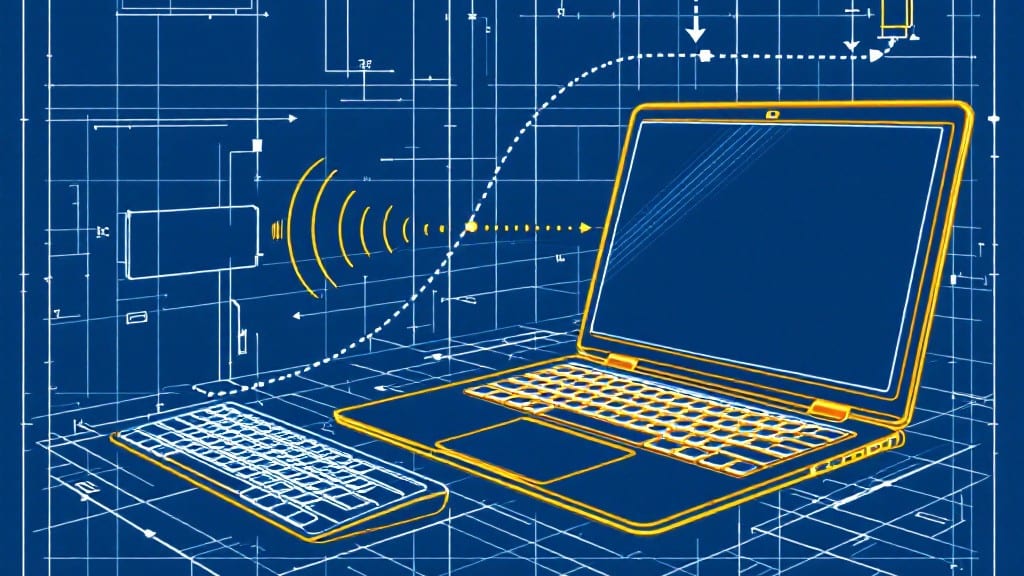
Connecting a keyboard to your computer should take less than five minutes—unless you're dealing with one of those ancient PS/2 connectors that still haunt my uncle’s basement. 💻 I’ve wired up everything from modern Bluetooth keyboards to vintage IBM Model M keyboards, and the process has gotten shockingly simple over the years.
The key is knowing whether your keyboard is wired or wireless, and matching it to your computer’s ports.
For wired keyboards, you’ll need a USB port (or that rare PS/2 port if you’re feeling nostalgic). Most modern keyboards just plug into any USB slot—laptop or desktop—though some gaming keyboards might need a dedicated port for extra speed.
Wireless keyboards, on the other hand, either use Bluetooth or a tiny USB receiver that you’ll plug in first. My ThinkPad X1 Carbon, for example, pairs wireless keyboards in seconds, but older Windows machines sometimes need a quick driver update.
You’ll end up with a keyboard that works instantly—no rebooting, no driver headaches, just plug-and-play. The setup is foolproof for USB, but Bluetooth can be finicky if your computer’s battery saver kicks in mid-pairing.
I’ll walk you through every step, including how to spot a dead port or a keyboard that’s just being stubborn. By the end, you’ll have your keyboard ready to go, whether you’re typing up a storm or just trying to type "Ctrl+Alt+Del" without fumbling.
We’ll cover Windows, macOS, and even Linux quirks—like how Ubuntu sometimes hides Bluetooth settings behind a secondary menu. And if all else fails, I’ll show you the quick fixes: restarting the computer, checking for loose connections, or even borrowing a friend’s keyboard to test your ports.
Trust me, you’ll feel like a tech pro after this.
📚 In This Guide
- What you need
- Instructions
- Tips and common mistakes
- Wrapping up and next steps
What you need
- ● Keyboard: A wired or wireless keyboard (USB-C, USB-A, Bluetooth, or proprietary connectors like Apple’s Lightning).
- ● Computer: A PC, Mac, or laptop with available ports (USB, USB-C, or Bluetooth).
- ● Power source (for wired keyboards): Ensure your keyboard is charged or plugged in.
- ● USB cable (if wired): A compatible cable (USB-A to USB-A, USB-C to USB-C, or a USB-C to USB-A adapter if needed).
- ○ Bluetooth adapter (optional for wired keyboards): Only needed if your computer lacks Bluetooth and you want to use a wired keyboard wirelessly.
- ● USB hub: If your computer has limited ports and you’re connecting multiple devices.
- ● Bluetooth receiver: For older keyboards that don’t support direct Bluetooth pairing.
- ● Anti-static wrist strap: If you’re working with sensitive electronics (like a new gaming setup).
- ● Extra batteries: For wireless keyboards that use them (AA/AAA).
- ● Manual or quick-start guide: Some keyboards come with setup instructions—keep it handy!
Step-by-Step instructions for connecting a keyboard to your system
Here's the straightforward process to get your keyboard working in under two minutes.
🔧 Step 1: Identify Your Keyboard Type and Ports
First, check whether you have a wired or wireless keyboard. Wired keyboards connect directly via USB-A, USB-C, or PS/2 ports, while wireless models use Bluetooth or a USB dongle. Most modern keyboards use USB-A or USB-C—look for the matching port on your computer.
If using a PS/2 keyboard (older systems), locate the purple (keyboard) and green (mouse) ports. The keyboard cable has a trapezoidal connector that only fits one way. For wireless keyboards, ensure the USB dongle is included in the packaging—it’s the small, thumb-drive-sized device that plugs into your computer.
⚡ Step 2: Physically Connect the Keyboard
For wired keyboards, plug the cable into the appropriate port. If your computer has multiple USB-A ports, any will work, but prioritize a front-panel port for easier access. For USB-C keyboards, insert the cable until you hear a click—the connector should seat fully. If it doesn’t, wiggle it slightly or try a different angle.
For wireless keyboards, insert the USB dongle into an available port. The light on the dongle will typically flash rapidly for 10-30 seconds while pairing. If it stays solid but the keyboard isn’t detected, unplug and replug the dongle or try a different port. For Bluetooth keyboards, ensure Bluetooth is enabled in your system settings before pairing.
💻 Step 3: Verify Connection and Driver Installation
Press a key on the keyboard. If it’s wired, you should see the corresponding character appear on screen immediately. If not, check that the cable is fully seated and try a different port. For wireless keyboards, wait 30 seconds after inserting the dongle—some models require a brief delay before detection.
If the keyboard isn’t recognized, your system may need drivers. For wired keyboards, Windows or macOS usually detects them automatically. For wireless models, visit the manufacturer’s website and download the latest driver. If the keyboard still doesn’t work, test it on another device to rule out hardware failure.
💡 Step 4: Configure Keyboard Settings (Optional)
Right-click the Start menu (Windows) or open System Preferences > Keyboard (macOS) to adjust settings. Here, you can enable keyboard shortcuts, adjust repeat delay, or remap keys. For gaming keyboards, download the manufacturer’s software (e.g., Logitech G Hub, Razer Synapse) to customize RGB lighting, macros, and key profiles.
If you’re using a mechanical keyboard, consider enabling N-Key Rollover in the software to prevent input drops during rapid typing. For Bluetooth keyboards, ensure the device is set to discoverable mode if you plan to switch between multiple devices frequently.
Tips & tricks for perfect keyboard connections
Here's what I've learned from fixing keyboard connections for friends and family over the years—these tricks save time and frustration.
Port Priority: In Step 2, if your wired keyboard isn't working, try the front-panel USB ports first. These often have dedicated power that can make all the difference with picky keyboards. I've seen keyboards work perfectly in front ports that refused to connect in rear ports—it's worth testing both locations before assuming hardware failure.
Dongle Dance: For wireless keyboards in Step 2, if the dongle light stays solid after 30 seconds, don't panic—just unplug and replug it quickly. The rapid flashing should return, indicating it's actively searching. I've fixed more connection issues with this simple "dongle dance" than any other troubleshooting step, and it takes less than 5 seconds.
Driver Detective Work: When Step 3 fails, don't automatically assume the keyboard is defective. Many modern keyboards require specific drivers, even if they're "plug and play." Start with the manufacturer's website, but also check Windows Update or macOS System Preferences for any pending driver updates. I once spent an hour troubleshooting a keyboard that just needed a firmware update from the manufacturer's site.
Bluetooth Basics: For Bluetooth keyboards in Step 2, make sure your device is actually discoverable. On Windows, this means clicking "Add Bluetooth or other device" in Settings, while macOS users need to open Bluetooth preferences and click "Turn Bluetooth On." Pro tip: If you're switching between devices, keep your keyboard in discoverable mode for 30 seconds after each connection attempt—this prevents pairing conflicts with other Bluetooth devices in range.
Pro Tips for Connect Keyboard To Computer
- Here's what I've learned from fixing keyboard connections for friends and family over the years—these tricks save time and frustration.
- Port Priority: In Step 2, if your wired keyboard isn't working, try the front-panel USB ports first.
- Dongle Dance: For wireless keyboards in Step 2, if the dongle light stays solid after 30 seconds, don't panic—just unplug and replug it quickly.
Frequently asked questions
Got questions about connecting your keyboard? Here are some of the most common ones—plus quick fixes to keep you typing smoothly!
Why won’t my keyboard work after plugging it in?
First, check if the keyboard is powered on (especially for wireless models). Try a different USB port or restart your computer. If it’s a wired keyboard, test it on another device to rule out hardware issues. For wireless keyboards, ensure batteries are fresh or the receiver is properly inserted.
How long does it take to connect a wireless keyboard?
Most wireless keyboards connect in under 30 seconds. Turn on the keyboard, press the pairing button (usually on the receiver or keyboard itself), and follow on-screen prompts. If it takes longer, restart the Bluetooth service on your computer or move closer to the receiver.
Can I use a keyboard from one brand on another computer?
Yes! Most keyboards are plug-and-play, but performance may vary. For wired keyboards, connect via USB and install drivers if needed. For wireless keyboards, check compatibility (e.g., Logitech’s software works across brands). If it doesn’t work, try a different port or update your OS.
What if my keyboard has no USB port?
No problem! Use a USB adapter (like a USB-C to USB-A converter) or a Bluetooth dongle if your keyboard supports it. For older keyboards, check for a PS/2 port (rare today) or a USB hub. If all else fails, a USB extension cable can help reach a free port.
How do I switch between two keyboards on one computer?
For wired keyboards, unplug one and plug in the other. For wireless keyboards, check your OS settings:
- Windows: Go to Settings > Devices > Bluetooth & other devices and toggle them on/off.
- Mac: Open System Preferences > Bluetooth and disconnect/reconnect as needed.
- Linux: Use terminal commands like
xinput listto identify and disable devices.
Pro Tip: Still stuck?
If your keyboard works intermittently, try these fixes:
- Replace batteries (for wireless models).
- Update drivers via Device Manager (Windows) or System Report (Mac).
- Reset Bluetooth on your computer (hold the power button for 10+ seconds on the keyboard).
- Test with a different cable (if wired) or receiver (if wireless).
Wrapping up and next steps
Connecting a keyboard to your computer—whether wired or wireless—is simpler than you think! 🎉 With just a few steps, you can enjoy a seamless typing experience. Whether you’re upgrading your setup or troubleshooting, now you’ve got the know-how to get it done in minutes.
Ready to take it further? Explore customizing your keyboard settings or check out ergonomic tips to make typing even more comfortable. Happy typing! ✨