
Tip & Trick
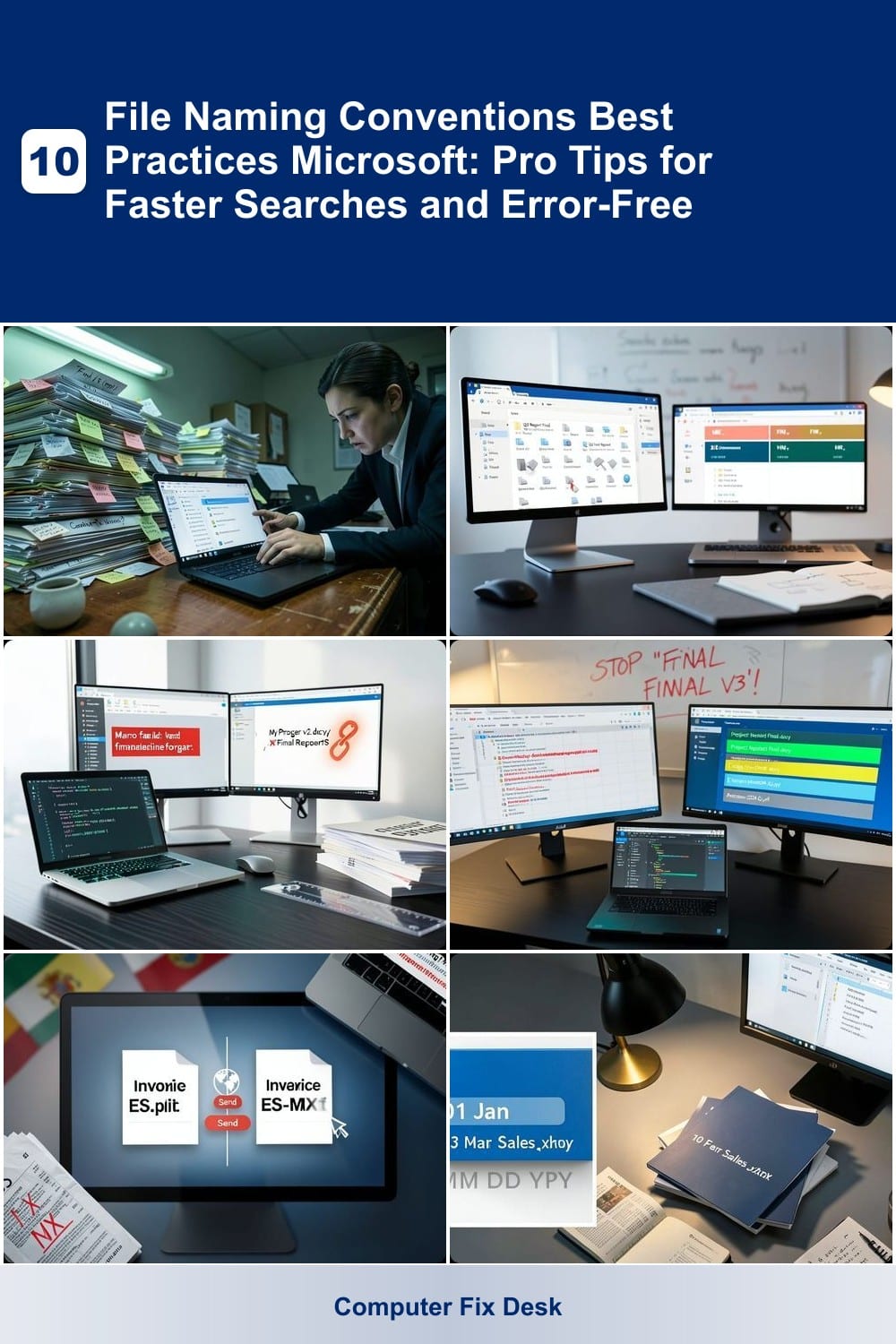
Struggling to find files quickly in Windows or SharePoint? Poor file naming causes wasted time and errors. These Microsoft-approved naming conventions will revolutionize your file organization, making searches faster and collaboration seamless.
Date-Based Naming for Version Control
Legal and compliance teams lose hours hunting through disorganized files—until they switch to date-based naming. This system ensures every revision (e.g., 20240515Contractv2.docx) sorts chronologically in Windows Explorer and OneDrive, eliminating confusion over "Finalv3" or "Draft2024" chaos.
Microsoft’s YYYYMMDD format (year-month-day) guarantees numerical sorting, while adding underscores avoids special character issues. Teams can instantly verify audit trails by scanning filenames, and version numbers (e.g., v1, v2) track edits without opening files. The structure also integrates seamlessly with Power Automate for automated archiving.
This method is ideal for legal contracts, financial records, or healthcare documents where regulatory compliance demands traceability. ⚡
Department-Code Prefixes for Team Sharing
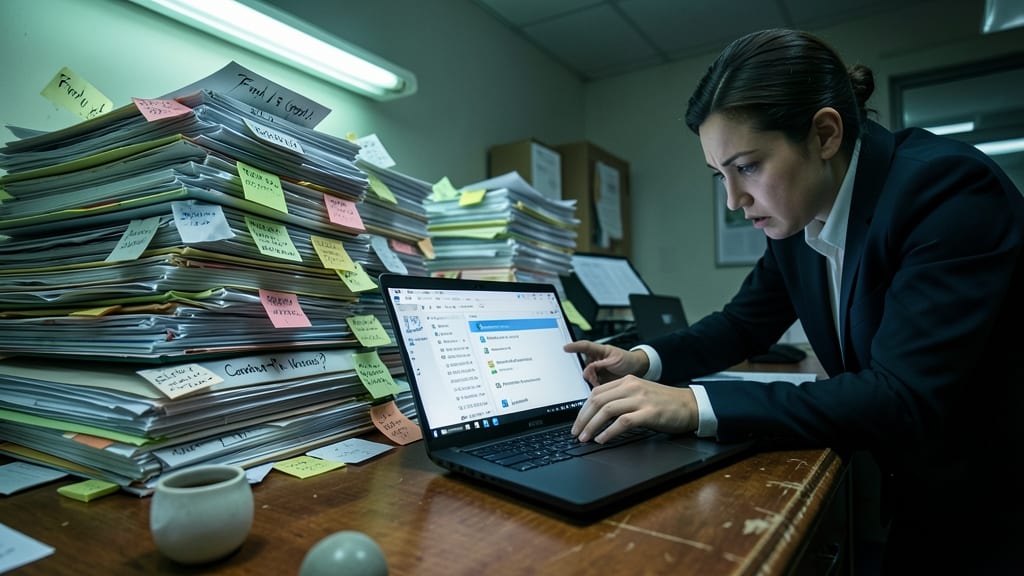
Tired of digging through SharePoint libraries where "Q3ReportFinal" and "Q3FinalReport" live side by side? Department-code prefixes like MKT or FIN instantly organize files by team, making them filterable in search and metadata columns without manual sorting.
Use 3-letter department codes (e.g., HR, ENG) followed by date and project details (e.g., MKT2024Q3CampaignAssets). SharePoint’s built-in filtering recognizes these prefixes, letting you search by department in one click. Combined with metadata columns, this creates a self-organizing system that scales across teams.
Perfect for companies with cross-functional projects—marketing, finance, and engineering teams can all access their files without confusion. 💻
Underscore Separators for Special Characters
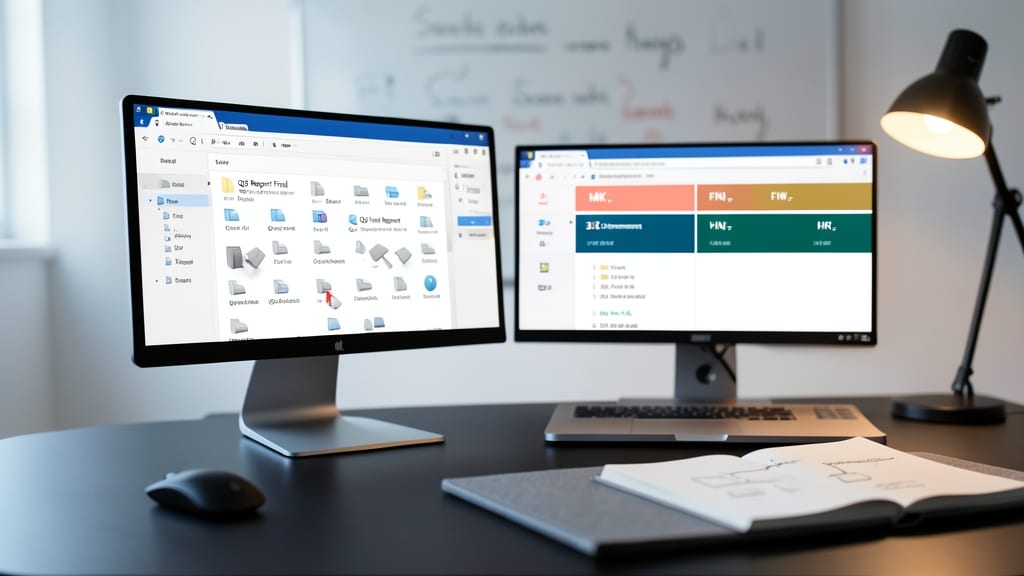
Tired of Outlook macros failing or PowerPoint hyperlinks breaking because of spaces or symbols in filenames? Microsoft’s underscore separator rule is the hidden fix you need for seamless file sharing and automation.
Replace spaces, slashes, or special characters (like #, $, %) with underscores ()—for example, convert Project Report 2024.pdf to ProjectReport_2024.pdf. This ensures compatibility with VBA macros, Power Automate flows, and Outlook attachments while keeping filenames human-readable. Microsoft’s official documentation even recommends this for SharePoint and OneDrive to avoid encoding issues.
Perfect for teams relying on automated workflows or sharing files across Microsoft 365 apps. ⚡
Project Phase Suffixes for Workflow Tracking
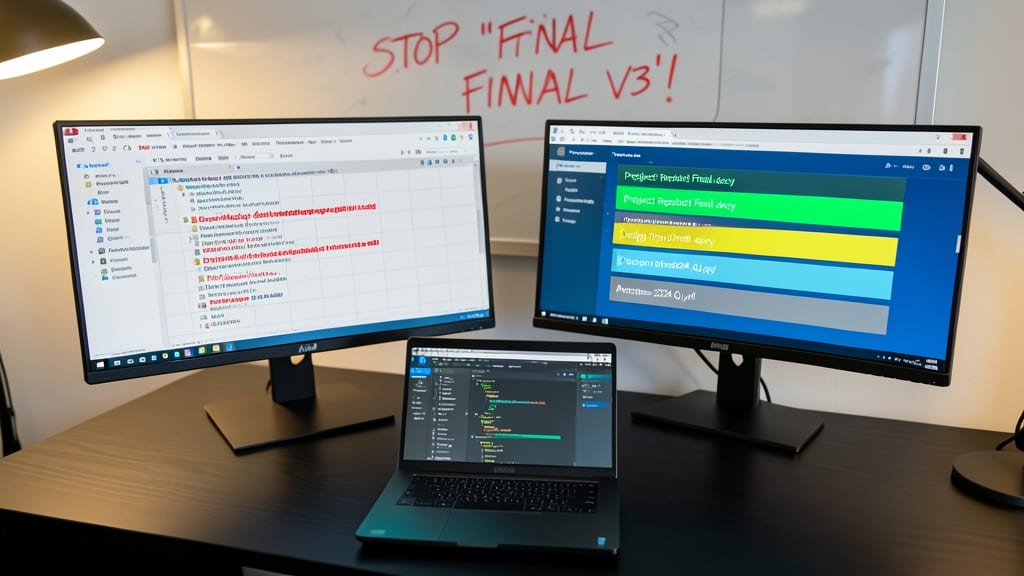
Agile teams drowning in "finalfinalv3" chaos? Project phase suffixes like Draft, Final, or Archive can transform your SharePoint workflows into automated, visual status trackers—no manual updates needed.
Microsoft Power Automate can detect these suffixes and trigger conditional formatting in SharePoint (e.g., red for Draft, green for _Final), while Teams integrations push notifications when files reach specific stages. The zero-config setup works with built-in Office 365 flows, eliminating the need for third-party tools.
Perfect for product teams using Jira + SharePoint, where file statuses automatically sync with sprint boards. Your entire team sees real-time progress without digging through folders. ✨
Language-Country Codes for Global Teams
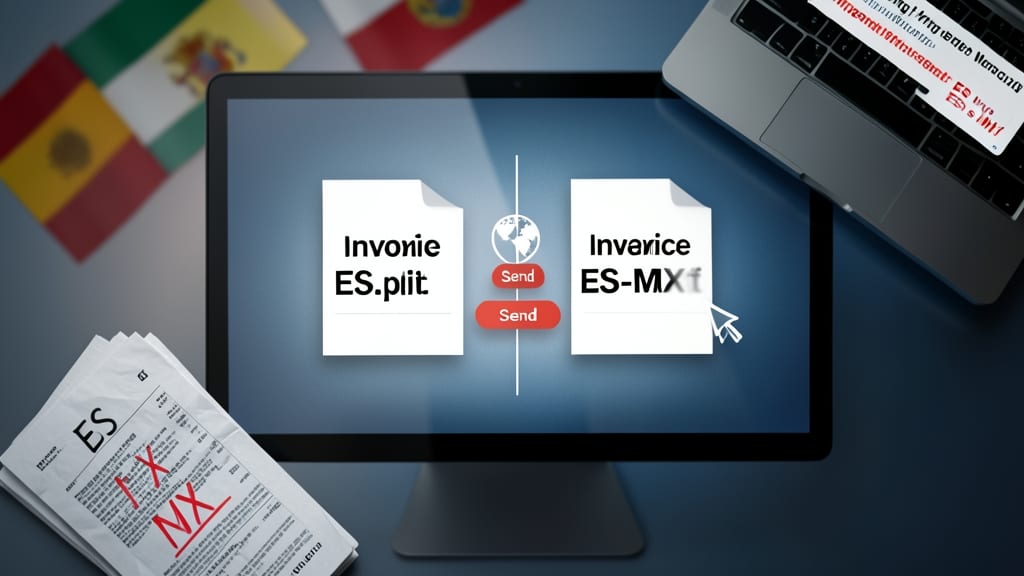
Global teams often face a hidden nightmare: accidentally sending the wrong language version of a document. A simple typo in a filename like InvoiceES.pdf instead of InvoiceES-MX.pdf could send a Spanish document to Mexico or a Mexican document to Spain—both legally and culturally problematic.
Microsoft 365 applications like Word, Excel, and SharePoint now support language-country codes (e.g., EN-US, ES-MX, FR-CA) that auto-localize content based on the filename. This ensures invoices, contracts, and support documents display in the correct language and format for each region. The ISO 639-1 language codes (e.g., EN, ES) combined with ISO 3166-1 alpha-2 country codes (e.g., US, MX) create unambiguous filenames that work seamlessly across Microsoft’s ecosystem.
This system is a game-changer for multinational companies, legal teams, and customer support—where even small language mismatches can cause delays or misunderstandings. Start with a standardized template like ContractEN-GB.docx or UserGuideJA-JP.pdf to future-proof your files. ✨
Numbered Sequences for Batch Files
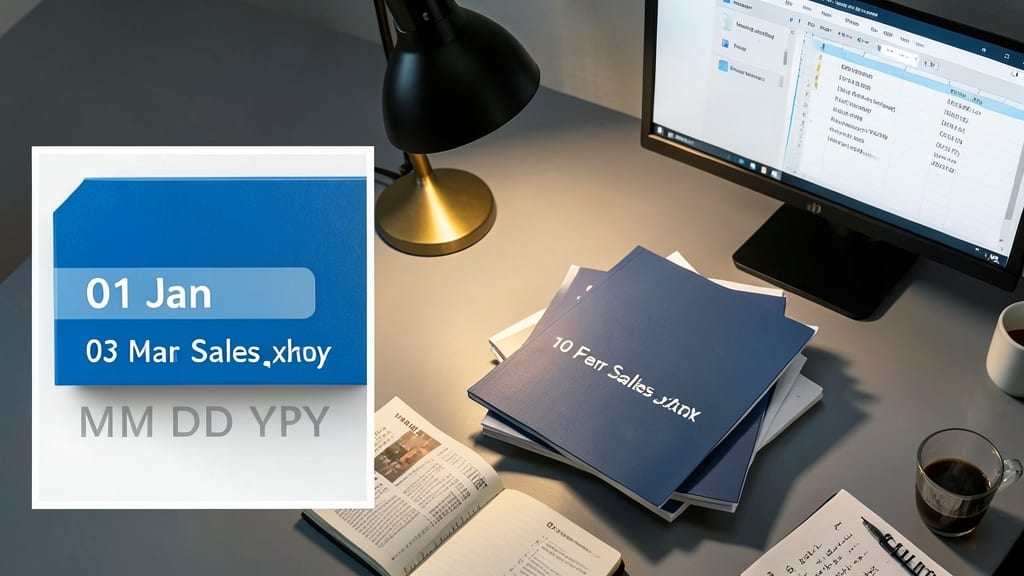
Accountants and HR professionals know the frustration of importing monthly reports where 01JanSales.xlsx appears after 10FebSales.xlsx in Excel or Windows Search. A simple fix: leading zero padding in your numbered sequences ensures chronological sorting automatically.
Use patterns like MMDDYYYY (e.g., 01Jan2024Sales.xlsx) or YYMM (e.g., 2401Q1_Report.pdf). This forces Windows and Excel to sort files numerically rather than alphabetically, saving hours during month-end reconciliations. The underscore separator also prevents parsing errors in automated workflows.
Ideal for teams processing batch files—whether it's payroll, invoices, or compliance reports—this convention turns chaotic folders into searchable, sortable goldmines. 💻
Metadata-First Naming for AI Search
Tired of digging through folders when Microsoft Copilot or Bing Search could instantly find your files? Metadata-first naming transforms your filenames into AI training data—so searches like "Show me all 2024 tax forms" work flawlessly. Instead of generic names, embed structured keywords (e.g., Tax2024Q1Form1099) that Microsoft’s AI uses to classify and retrieve files.
This method leverages AI-driven search algorithms in Microsoft 365, where filenames with consistent patterns (dates, departments, document types) improve accuracy. For example, HR2024Q2OnboardingGuide.pdf ensures Copilot surfaces it when someone asks about Q2 hiring docs. The best part? No extra tools—just clear, keyword-rich filenames that work across Windows, SharePoint, and Copilot.
Perfect for knowledge workers (legal, finance, HR) who rely on AI search but struggle with disorganized files. Start with a template like [Department][Year][Quarter][DocumentType]—your future self (and Copilot) will thank you. ✨